Source: AskDona SaaS product documentation (user guide), compiled by GFLOPS. Applies to the SaaS platform only; the planned AskDona API is a separate offering and may behave differently.
How to read these answers: the documentation does not answer these questions in so many words. Each answer was derived by interpreting related, documented features, and many say so in their first sentence. Treat them as guidance on how documented features can be applied — not as evidence that a dedicated feature exists. Where an answer says no dedicated feature is documented, that is the current position.
What it can solve (解決できること)
Q: 毎年同じ自己点検をやり直しています。設定や資料を再利用できますか?
Answer (English)
The documentation does not use the exact terms “annual assessment form” or “updated materials.” Interpreting them as the documented Excel file with 400 assessment items and the design documents and operating procedures provides a concrete account of support for annual self-checks. Register the design documents and procedures in the RAG database and upload the Excel assessment items. AI automatically assesses them and exports Excel results with comments and evidence. The user’s final task is to manually review only items marked Unable to determine or Not implemented.
回答(日本語)
ドキュメントには「年次評価票」や「更新資料」という言葉自体は直接使われていませんが、これらを「評価項目400件入りのExcel」および「設計書・運用手順書」と意訳することで、AskDonaが毎年の自己点検をどのように支援できるかが具体的に示されています。具体的には、設計書・運用手順書をRAGデータベースに登録し、評価項目入りのExcelをアップロードすることで(入力例)、AIが自動判定を行いコメント・エビデンス付きでExcel出力します(出力例)。利用者が最終的に行う作業は、「判断不可」や「未対応」の項目だけを目視レビューすることです。
Q: 資料を修正した後、どの項目を再確認すればよいか分かりません。
Answer (English)
The documentation does not use the exact phrase “reassessment after changes,” but discusses revising RAG database documents such as design documents and operating procedures, and running quarterly assessments to compare periods and track operational changes. Combining these descriptions allows a concrete explanation of reassessment using revised documents and assessment results, including its scope, example inputs and outputs, and final user tasks such as manually reviewing only items marked Unable to determine or Not implemented.
回答(日本語)
ドキュメント内には「変更後の再評価」という表現は直接使われていませんが、RAGデータベースに登録したドキュメント(設計書や運用手順書など)の改訂や、四半期ごとの定期的なアセスメント実行(前期との比較や業務の変化の定点観測)に関する記述があります。これらを組み合わせることで、改訂文書と評価結果を用いた「変更後の再評価」の支援内容、入力例・出力例、および利用者が最終的に行う作業(「判断不可」や「未対応」の項目のみを目視レビューするなど)を具体的に説明することができます。
Q: 一度に全部評価するのが不安です。小さく試して対象を増やせますか?
Answer (English)
The documentation does not use the exact terms “representative items” or “complete assessment form.” It does describe testing a small number of items from an Excel file and selecting assessment items at execution. Interpreting these features provides an answer about phased large-scale assessment.
Scope
Before publication, test a small number of items and confirm that results behave as expected. Users can also narrow the items to run in the assessment-item selection screen for a new run.
Example inputs
- An Excel file of assessment items.
- Design documents, operating procedures, or other assessment materials registered in RAG.
- Answers to the preliminary input-flow questions.
Example outputs
Results are exported together to mapped Excel columns: Result, such as Implemented / Not implemented / Not applicable / Unable to determine; Comment explaining the assessment; Evidence excerpt; and Source filename.
Final user tasks
- Manually review items marked Unable to determine or Not implemented and make final decisions.
- Review test results and adjust prompts and option descriptions to improve accuracy.
回答(日本語)
ドキュメントには「代表項目」や「全体評価票」という直接の用語は使われていませんが、全体評価票に相当する「Excelファイル」から「少ない項目数」を選択してテスト実行する機能や、実行時に「評価項目を選択」して段階的に実行する機能が説明されており、意訳することで「大量評価の段階実施」をどこまで支援できるか回答可能です。
具体的には以下の通り支援内容、入力・出力例、最終作業が示されています。
段階実施の支援:
アセスメントの新規作成時に「まずは少ない項目数でテスト実行を行い、判定結果が期待通りかを確認してから公開する」ことが推奨されています。また、アセスメントの新規実行時にも「評価項目の選択」画面で実行対象とする項目を絞り込んで実行できます。
入力例:
- 評価項目が記載されたExcelファイル
- RAGデータベースに登録された設計書や運用手順書などの評価対象ドキュメント
- 実行時の入力フロー(事前質問)への回答
出力例:
- 判定結果(対応済み/未対応/対象外/判断不可など)
- コメント(判定理由の説明)
- 引用 / エビデンス(判定の根拠となった情報源からの引用)
- 参照元(判定に使用されたファイル名)
これらがマッピングされたExcelファイルとして一括出力されます。
利用者が最終的に行う作業:
- AIが「判断不可」や「未対応」と判定した項目について、目視レビューを行い最終判断を下すこと。
- テスト実行結果を確認し、判定精度を向上させるためにプロンプトや評価選択肢の記述を調整すること。
Q: 評価に必要な資料がそろっているか、先に確認する方法はありますか?
Answer (English)
The documentation does not explicitly say “identifying missing materials,” but Batch Assessment’s workflow can be interpreted to explain support for this task.
Scope: AI compares submitted documents in RAG with assessment criteria in Excel. Results such as Unable to determine or Not implemented can help identify missing materials.
Inputs: An Excel file of criteria and submitted documents, such as design documents and operating procedures, registered in RAG.
Outputs: An Excel report containing the Result, including Unable to determine when the knowledge base lacks necessary information; a Comment explaining the reason, such as missing information; an Evidence excerpt; and the Source filename.
Final user task: Manually review only items marked Unable to determine or Not implemented, identify missing materials, and decide on follow-up actions such as requesting additional submissions.
回答(日本語)
ドキュメントには「不足資料の洗い出し」という直接的な表現はありませんが、Batch Assessment(バッチアセスメント)機能の仕組みを意訳することで、この課題に対する支援内容を具体的に示すことができます。
支援できる範囲:
提出済みの文書(RAGデータベース)と評価基準(Excelの評価項目)を照らし合わせ、AIが各項目を自動判定します。情報が不足している場合には「判断不可」や「未対応」と判定されるため、これらを通じて不足資料を洗い出すことができます。
入力例:
- 評価基準:評価項目が並んだExcelファイル
- 提出済み文書:RAGデータベースに登録された設計書や運用手順書などのドキュメント
出力例:
Excelレポートとして以下の情報が一括出力されます。
- 判定結果:「判断不可」(判定に必要な情報がナレッジベースに不足している場合)や「未対応」など
- コメント:判定に至った理由(情報が不足している旨など)の説明
- 引用(エビデンス):判定の根拠となった情報源からの引用
- 参照元:判定に使用されたファイル名
利用者が最終的に行う作業:
AIが「判断不可」や「未対応」と判定した項目のみを目視でレビューし、不足している資料を特定して追加の提出を求めるなどの最終判断・対応を行います。
Q: ルールが書いてあるだけで実施済みと判定しないようにできますか?
Answer (English)
The documentation does not directly describe support or input/output examples for distinguishing policies from implementation records. Batch Assessment specifications and use cases can nevertheless be adapted to explain the task. Register procedures or policies and operational records in RAG, then run an assessment. To avoid treating a written rule as proof of implementation, define explicit criteria in Step 6, Result Options, or Step 8, Prompt: mark Implemented only when implementation records or other evidence confirm that the rule is actually operating; where only the policy is documented, mark Not implemented or Unable to determine. Example inputs are an Excel checklist and policy and implementation-record PDFs registered in RAG. Excel outputs include Result—Implemented / Not implemented / Unable to determine—Comment, Evidence excerpt, and Source. Users focus manual review and final decisions on Not implemented or Unable to determine results.
回答(日本語)
ドキュメントには「規程と実施記録の違い」という表現で直接的に支援内容や入出力例を解説した記述はありません。しかし、Batch Assessment機能の仕様やユースケースを意訳・応用することで、この課題に対する支援方法を具体的に示すことができます。具体的には、RAGデータベースに「業務手順書(規程)」と「運用記録(実施記録)」を登録し、アセスメントを実行します。「ルールが書いてあるだけで実施済みと判定しないようにする」ためには、ステップ6の「評価選択肢」やステップ8の「プロンプト」において、「規程にルールが記載されているだけでなく、実施記録等の証跡によって実際に運用されていることが確認できる場合のみ『対応済み』とし、規程の記述のみで実施の証跡がない場合は『未対応』または『判断不可』と判定すること」といった具体的な判定基準をLLMに指示します。入力例としては、評価項目が並んだExcelシートと、RAGに登録された規程・実施記録PDF等があります。出力例としては、Excelに「判定結果(対応済み/未対応/判断不可)」「コメント(判定理由)」「引用(エビデンス)」「参照元」が出力されます。利用者が最終的に行う作業は、AIが「未対応」や「判断不可」と判定した項目に集中して目視レビュー(最終判断)を行うことです。
Q: 提出された証拠が古い場合、今も有効か区別して評価できますか?
Answer (English)
The documentation can be interpreted to explain handling old evidence files and using dates to distinguish information.
Scope: Even if old files remain in RAG, instructing the LLM to consult current information allows answers to be generated from the latest information. A system-prompt rule distinguishing past and future by reference dates can control date-based assessments and answers.
Example system prompt: “For questions about upcoming events or plans, describe only information dated after today as scheduled. Do not present past events or articles as upcoming. If no future information is available in the references, say ‘No upcoming plans are currently published.’ Always include a date in YYYY年M月D日 format when it is meaningful. Do not invent dates absent from the references.”
Example output: “No upcoming plans are currently published” when no future information is available.
User tasks: Upload current files; delete old files, including in bulk, when uploading updated files with the same name; manage versions through filenames, file contents, or metadata; and configure prompts to prioritize current information and interpret dates.
回答(日本語)
ドキュメントにおいて、「古い証拠(ファイル)の扱い」や「日付情報に基づく判別」について意訳することで回答となる情報が記載されています。
古い証拠の扱いと支援範囲:
RAGデータベースに古いファイルが残っていても、LLMに最新の情報を参照するように指示すれば、最新の情報から回答を生成することができます。また、システムプロンプト(システム環境設定)で「参照情報の日時で過去・未来を判別してほしい」というルールを設定することで、日付に基づいた評価・回答の制御が可能です。
入力例(システムプロンプトの設定例):
システム環境設定に以下の指示を記述します。
「予定・今後・次回の扱い:これから先のことを問われた場合は、現在日付より後(未来)の日付を持つ情報のみを「予定」として回答する。過去のイベント・記事を「予定」として案内しない。未来の情報が参照情報にない場合は「現時点で公開されている予定はありません」と回答する。
・日付の明記:日付が意味を持つ情報は、本文中に必ず「YYYY年M月D日」形式で明記する。参照情報に日付がない場合は推測で日付を書かない。」
出力例:
未来の情報が参照情報にない場合、AIは「現時点で公開されている予定はありません」と回答します。
利用者が最終的に行う作業:
- 最新のファイルをアップロードする。
- 同一名称の更新済みファイルをアップロードする場合は、古いファイルを削除(一括削除など)する。
- ファイル名、ファイルの中身、またはメタデータでバージョン管理を行う。
- システムプロンプトで、最新情報を参照する指示や日付の判別ルールを設定する。
Q: AIが問題のある項目を合格にしてしまわないか心配です。どう検証しますか?
Answer (English)
The documentation does not explicitly describe a feature, or concrete input/output examples, for preventing false passes using assessment samples with known correct answers. Related features and practices can be interpreted to explain support and user responsibilities.
Testing: Before publication, administrators can test a small sample, compare results with expected answers, and adjust prompts and result-option descriptions to improve accuracy and reduce false passes.
Configuration: Include Unable to determine so missing information does not produce forced conclusions. Give strict prompt instructions, such as marking Not implemented whenever any criterion is unmet.
Human decisions: AI performs the initial assessment, while users focus manual review and final decisions on Unable to determine, Not implemented, and Review required results.
回答(日本語)
ドキュメントには「正解付きの評価サンプルから誤合格への対策を支援する」という直接的な機能や、その具体的な入力例・出力例についての文字通りの言及はありません。しかし、意訳すれば、以下の機能や設定、運用プロセスを通じて、誤合格を防ぐための対策や支援、利用者が行うべき作業が示されています。
テスト実行による判定精度の向上(評価サンプルでの検証):
管理者はアセスメントを公開する前に、少ない項目数(評価サンプル)で「テスト実行」を行うことができます。テスト実行の結果が期待通り(正解)に動作しているかを確認し、必要に応じてプロンプトや評価選択肢の記述を調整することで、判定精度を向上させ(誤合格を防ぎ)ます。
誤合格を防ぐための設定とプロンプトの工夫:
- 評価選択肢に「判断不可」を含めることで、情報不足の場合にLLMが無理な結論(誤合格など)を出すことを防ぎます。
- プロンプトにおいて「少しでも基準を満たさない場合は未対応と判定すること」のように厳格な評価方針を明確に指示します。
人間による最終判断(分業モデル):
AIにすべての判断を委ねるのではなく、「一次評価をAIに、最終判断を人間に」という分業モデルを基本としています。利用者は、AIが「判断不可」や「未対応」、「要確認」と判定した項目に集中して目視レビュー(最終判断)を行います。
Q: 同じ資料でAIを使うたびに判定が変わらないか、どう確認すればよいですか?
Answer (English)
The documentation does not use the term reproducibility, but describes Batch Assessment as useful for reducing differences between reviewers and ensuring consistent assessments, which can be interpreted as support for reproducibility. It gives inputs such as an Excel checklist and documents registered in RAG, outputs comprising Result, Comment, Evidence excerpt, and Source, and a final workflow in which people manually review only Unable to determine or Not implemented items and make final decisions. These descriptions can be combined to answer the question.
回答(日本語)
ドキュメントには「判定の再現性」という言葉自体は使われていませんが、Batch Assessment機能が「担当者ごとの判定のばらつきを減らし、評価の一貫性を確保したい方」向けに役立つことが示されており、これが再現性の支援に該当します。また、入力例として評価項目が含まれたExcelファイルやRAGデータベースに登録されたドキュメント、出力例として判定結果、コメント、引用(エビデンス)、参照元、利用者が最終的に行う作業として「判断不可」や「未対応」の項目だけを目視レビューし、最終判断を人間が行うことが具体的に示されています。これらを組み合わせることで、質問に対する回答を構成できます。
Q: 後から資料が変わっても、評価した時点の根拠を確認できますか?
Answer (English)
The documentation does not explicitly say “preserving the assessment as of its date,” but describes reviewing and saving historical results and their comments, evidence, and sources.
Scope: Completed runs can be reviewed in History and exported together as Excel reports. For meaningful historical comparison, duplicate assessments and manage them separately rather than editing them.
Inputs: Assessment documents such as design documents, operating procedures, or contract PDFs; an Excel checklist; and input-flow answers.
Outputs: Result—Implemented / Not implemented / Not applicable / Unable to determine—Comment, Evidence excerpt, and Source filename.
User tasks: Review historical runs, export Excel reports, manually review Unable to determine or Not implemented items, and duplicate assessments for historical comparison.
回答(日本語)
ドキュメント内には「評価時点の保存」という直接的な表現は存在しませんが、過去の実行履歴から評価時点の判定結果や根拠(コメント、引用、参照元)を確認・保存できる機能について具体的に記載されているため、意訳することで回答が可能です。
具体的には、以下の通り支援内容、入力例・出力例、利用者が最終的に行う作業を示すことができます。
- 支援内容:アセスメントの実行完了後、実行履歴から過去の実行結果を確認できます。また、Excelでアセスメント結果をレポートとして一括出力できます。過去結果との比較を重視する場合は、アセスメントを編集するのではなく「複製」して別アセスメントとして運用することが推奨されています。
- 入力例:評価対象のドキュメント(設計書・運用手順書、契約書PDFなど)や、評価項目が入ったExcelファイル、入力フローでの回答。
- 出力例:判定結果(対応済み / 未対応 / 対象外 / 判断不可)、コメント(判定理由の説明)、引用(エビデンス:判定の根拠となった情報源からの引用)、参照元(判定に使用されたファイル名)。
- 利用者が最終的に行う作業:実行履歴から過去の実行結果を確認する、Excelでアセスメント結果をレポートとして一括出力する、判断不可や未対応の項目を目視レビューする、過去結果との比較のためにアセスメントを複製して運用する。
Q: AIの引用が原文と一致しているか、確認しやすい仕組みはありますか?
Answer (English)
AskDona does not describe a feature specifically named verification of quotations against the original. However, RAG chat’s source previews and Batch Assessment’s evidence and source outputs provide substantial support.
Scope
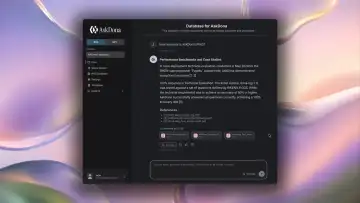
- RAG chat displays References links and source thumbnails. Clicking a source opens the document in the right-hand browser preview.
- Batch Assessment, a Pro feature, automatically outputs evidence excerpts and source filenames for each item and can export them together to Excel.
Inputs and outputs
- Inputs: A RAG chat question, or an uploaded Excel checklist and assessment run.
- Outputs: Chat answers, References links, source thumbnails, and previews; or an assessment screen and Excel report with Result, Comment, Evidence excerpt, and Source.
Final user tasks
- Read the original in the RAG preview and manually compare it with the answer.
- Use Batch Assessment evidence and source fields to perform manual review and make final decisions.
回答(日本語)
AskDonaには「引用の原文照合」という言葉そのものを用いた機能説明はありませんが、RAGチャットにおける「参照元プレビュー」機能や、Batch Assessmentにおける「引用(エビデンス)」および「参照元」の出力機能を通じて、引用の原文照合を強力に支援できます。
具体的には以下の通りです:
どこまで支援できるか:
- RAGチャットでは、回答の根拠となったドキュメントへのリンク(References)や参照元ファイルのサムネイルを表示します。参照元のファイルをクリックすると、画面右側に該当ドキュメントのプレビューが表示され、ブラウザ上でそのまま閲覧できます。
- Batch Assessment(プロ機能)では、各評価項目に対して「引用(エビデンス)」と「参照元(ファイル名)」を自動で出力し、Excelレポートとして一括出力できます。
入力例と出力例:
- 入力例:RAGチャットでの質問入力、またはBatch Assessmentでの評価項目Excelのアップロードと実行。
- 出力例:RAGチャットでは、回答本文、References(リンク)、参照元サムネイル、および画面右側の「参照元プレビュー」。Batch Assessmentでは、各項目に対する「判定結果」「コメント」「引用(エビデンス)」「参照元」が記載された画面表示およびExcelレポート。
利用者が最終的に行う作業:
- RAGチャットでは、右側に表示された「参照元プレビュー」で元のドキュメントを直接閲覧し、回答内容の正確性を目視で確認(原文照合)します。
- Batch Assessmentでは、出力された「引用(エビデンス)」や「参照元」を参考に、担当者が目視レビューや最終判断を行います。
Q: 評価結果を現場に返す際、何が足りないか分かる形にできますか?
Answer (English)
The documentation does not explicitly use “explaining improvements,” but describes Batch Assessment outputs explaining nonconforming results such as Not implemented. AI produces Result, Comment, Evidence excerpt, and Source. Adding instructions to describe residual risks to negative result options such as Not implemented can also make AI generate explanations of risks and improvements. Users manually review Not implemented or Unable to determine results and make final decisions.
回答(日本語)
ドキュメントには「改善点の説明」という直接的な表現はありませんが、アセスメント機能(Batch Assessment)において不適合項目(「未対応」など)の判定理由やエビデンスを出力する仕組みが説明されています。具体的には、AIが「判定結果」「コメント(判定理由の説明)」「引用(エビデンス)」「参照元」を出力します。また、評価選択肢の設定において「未対応」などの否定的な選択肢に「残存リスクの記述指示」を含めることで、改善点やリスクの説明をAIに生成させることが可能です。利用者が最終的に行う作業は、AIが出力した「未対応」や「判断不可」の項目を目視レビューし、最終判断を行うことです。
Q: 複数の条件を全部満たす必要がある項目を、AIで確認できますか?
Answer (English)
Answer: The documentation supports an answer through interpretation.
Basis: Batch Assessment automatically assesses many items. Example inputs include an Excel checklist and evidence such as design documents or contracts. Excel outputs contain Result, Comment, Evidence excerpt, and Source. Users manually review only Not implemented or Unable to determine items.
回答(日本語)
【回答】意訳したら回答があります。
【根拠】ドキュメントによれば、AskDonaの「Batch Assessment」は多数の評価項目に対して自動判定を行う機能です。ドキュメントによれば、入力例として評価項目Excelや証拠文書(設計書や契約書等)をアップロードし、出力例として判定結果、コメント、引用、参照元がExcelに出力され、利用者は「未対応」や「判断不可」の項目のみを目視レビューします。
Conditions and scope (利用条件・適用範囲)
Q: 「判断不可の扱い」でAIを使いたいのですが、「情報が未提出」という条件でも使えますか?
Answer (English)
The documentation does not explicitly say “information has not been submitted,” but its references to insufficient information or missing information in the knowledge base can be interpreted as covering that situation. In Step 6, Result Options, when creating an assessment, add Unable to determine and give it a specific description for the LLM, such as “The knowledge base lacks the information required for assessment.” This prerequisite and additional setting prevents the LLM from forcing a conclusion when information is insufficient. The documentation explains that without it, the LLM may force a conclusion despite missing information.
回答(日本語)
ドキュメントにおいて、「情報が未提出」という表現は直接使われていませんが、「情報不足の場合」や「判定に必要な情報がナレッジベースに不足している場合」という表現を「情報が未提出」と意訳することで回答が可能です。アセスメントの新規作成における「ステップ6:評価選択肢」の設定で、「判断不可」という選択肢を追加し、その説明(LLMへの指示)として「判定に必要な情報がナレッジベースに不足している場合」などの具体的な基準を記入する(対応条件・追加設定)ことで、情報不足の際にLLMが無理な結論を出すことを防ぐことができます。この設定を行わないと、情報不足の状況でLLMが無理な結論を出してしまう(対応できないケース)と説明されています。
Q: 「複数システムの評価」でAIを使いたいのですが、「似たシステム名がある」という条件でも使えますか?
Answer (English)
The documentation does not directly address how similar system names affect Batch Assessment across multiple systems. An answer can nevertheless be inferred from related feature specifications.
To distinguish target systems, add metadata to each RAG database file, then configure RAG database filtering and its metadata key in Step 4, Input Flow. Without metadata, the selection list is empty and a system cannot be selected.
RAG chat’s AI Personality Settings and System Settings have no effect on Batch Assessment decisions. A system-name mapping configured in RAG chat therefore does not apply. Additional instructions must instead be entered in the dedicated Batch Assessment prompt in Step 8.
Together, these specifications explain the prerequisites—file metadata—the additional configuration—input-flow filtering and dedicated prompt instructions—and unsupported cases, such as missing metadata or reliance on RAG chat settings.
回答(日本語)
ドキュメントには「似たシステム名がある」場合のBatch Assessment(複数システムの評価)への影響や対応について直接文字通りに言及している箇所はありません。しかし、関連する機能の仕様から意訳して回答を導き出すことができます。
具体的には、ドキュメントによれば、Batch Assessmentで評価対象のシステムを区別するためには、RAGデータベース側で各ファイルにメタデータを付与した上で、アセスメント設定のステップ4「入力フロー」で「RAGデータベースのフィルタリング」を設定し、メタデータキーを指定する必要があります。メタデータが付与されていない場合は選択肢が空になりシステムを選択できません。
また、ドキュメントによれば、RAGチャット側の「AIパーソナリティ設定」や「システム環境設定」はBatch Assessmentの判定に一切影響しないため、RAGチャット側でシステム名の対応表を設定していても適用されません。代わりに、Batch Assessment専用のプロンプト(ステップ8)で追加の指示を設定する必要があります。
これらの情報から、似たシステム名がある場合の対応条件(メタデータの付与)、追加設定(入力フローでのフィルタリング設定や専用プロンプトでの指示)、対応できないケース(メタデータ未付与の場合やRAGチャット側の設定に頼る場合)を説明することができます。
Q: 「大量評価の段階実施」でAIを使いたいのですが、「本番の対象数が多い」という条件でも使えますか?
Answer (English)
The documentation does not explicitly refer to phased large-scale assessment. It describes Batch Assessment for hundreds or thousands of items and a use case involving 100 systems and 400 items. Interpreting these descriptions as phased assessment provides the following requirements and limitations.
Requirements: Upload and fully process assessment documents in the RAG database beforehand, upload the Excel assessment items and select their range in the preview, and allow one credit per assessment item.
Additional configuration: Set the input flow to narrow the target systems, item filters to exclude items conditionally, result options defining assessment criteria, output settings assigning all four required columns, and the prompt for additional instructions.
Unsupported cases include failure to select the Excel column, incomplete assignment of the four output columns, password-protected files, PDFs exceeding the 2,000-page or 100 MB limits, and insufficient credits.
回答(日本語)
ドキュメントには「大量評価の段階実施」という表現は直接使われていませんが、数百〜数千の評価項目をチェックする「Batch Assessment」機能や、100システム×400項目といった大規模なアセスメントのユースケースが記載されています。これらを「大量評価の段階実施」と意訳することで、対応条件、追加設定、対応できないケースについて説明することができます。
対応条件:評価用ドキュメントをあらかじめRAGデータベースにアップロードして処理を完了させておくこと、評価項目が含まれたExcelファイルをアップロードしてプレビュー上でドラッグ選択すること、1評価項目あたり1クレジットを消費することなどが挙げられます。
追加設定:実行時に対象システムを絞り込むための「入力フロー(事前質問)」、条件に応じて項目を除外する「項目フィルタ」、AIの判定基準となる「評価選択肢」、結果を出力する「出力設定(4列すべての指定が必須)」、追加の指示を与える「プロンプト」の設定が必要です。
対応できないケース:Excelの列選択を行わない場合、4つの出力列がすべて指定されていない場合、パスワード保護されたファイルや上限(2,000ページ、100MB)を超えるPDF、クレジットが不足している場合などが該当します。
Q: 「追加確認事項の整理」でAIを使いたいのですが、「理由が項目ごとに異なる」という条件でも使えますか?
Answer (English)
The documentation does not directly mention organizing follow-up checks or reasons differing by item. Batch Assessment’s result options, item filters, and item-level comments can be interpreted to address these needs. Configure Further confirmation required as a result option and output the AI’s item-specific reasoning in Comment. Item filters can also fill in different Not applicable reasons based on input-flow answers. However, entirely different custom assessment criteria or LLM instructions cannot be assigned separately to each item through Result Options, because those settings apply collectively.
回答(日本語)
ドキュメント内には「追加確認事項の整理」や「理由が項目ごとに異なる」という表現は直接言及されていませんが、Batch Assessment機能の「評価選択肢」や「項目フィルタ」、「実行結果のコメント出力」を意訳して適用することで回答が可能です。具体的には、評価選択肢として「追加確認が必要」を設定し、AIが判定した理由を項目ごとに異なる「コメント」として出力させることができます。また、項目フィルタ機能を用いて、入力フローの回答に基づき項目ごと異なる「対象外理由」を自動入力することも可能です。ただし、項目ごとに全く異なる独自の判定基準(LLMへの指示)を個別に設定することは、評価選択肢の設定画面では一括設定となるため対応できません。
Q: 「古い証拠の扱い」でAIを使いたいのですが、「証拠の有効期間が決まっている」という条件でも使えますか?
Answer (English)
The documentation does not directly discuss evidence with a fixed validity period. Guidance on old information and prioritizing current sources can be interpreted and applied as follows.
Conditions
- Even with old files present, instructing the LLM to consult current information makes it generate answers from the latest information.
- Add time references such as “the latest” or “as of 2026” to questions.
- For Batch Assessment, archive the previous year’s version and publish the new one so users can identify the current assessment.
Additional configuration
- Add RAG chat system-prompt rules to prioritize current information, present conflicting accounts with update dates, and state dates explicitly when important.
- Manage versions through filenames, file contents, or metadata.
Limitations
- Identical filenames are not recommended; delete the old file before uploading an updated file with the same name.
- If answers must use only current information, bulk-delete old files.
回答(日本語)
ドキュメントには「証拠の有効期間が決まっている」という表現での直接的な言及はありませんが、古い情報の扱いや最新情報の優先参照に関する対応条件、追加設定、対応できないケース(注意点)について、以下のように意訳・応用することで説明が可能です。
対応条件:
- 古いファイルが残っていても、LLMに最新の情報を参照するように指示すれば、最新の情報から回答を生成します。
- 質問時に「最新の」や「2026年時点の」などの時点を添えて質問します。
- アセスメント(Batch Assessment)においては、「旧年度版はアーカイブする」「新年度版を公開する」という運用を行うことで、利用者が迷わず最新版を利用できます。
追加設定:
- RAGチャットの設定(システムプロンプト)で、最新情報を優先して参照するよう指示を追加します。システムプロンプトに「最新情報を優先し、矛盾があれば更新日を添えて両論併記する」や「日付が重要な情報は必ず日付を明記する」といったルールを設定します。
- ファイル名、ファイルの中身、もしくはメタデータなどでバージョン管理を行います。
対応できないケース(注意点):
- 同一名称でのファイルアップロードは推奨されていないため、同一名称の更新済みファイルをアップロードしたい場合は、古いファイルを削除する必要があります。
- どうしても最新の情報のみをLLMに回答させたい場合は、古いファイルの一括削除を行う必要があります。
Q: 「一次評価と最終判断」でAIを使いたいのですが、「確認時間を十分に取れない」という条件でも使えますか?
Answer (English)
The documentation does not explicitly discuss insufficient time for review. Its division of AI and human responsibilities, targeted review, automatic item exclusions, and Unable to determine option can be combined to explain the following.
Scope: AI performs the initial assessment while people manually review only specified results, such as Unable to determine or Not implemented, substantially reducing review time.
Configuration: In Step 6, include Unable to determine and define specific criteria to prevent forced conclusions. In Step 5, configure item filters to exclude unnecessary items as Not applicable and reduce the review workload.
Limitations: Human final review cannot be eliminated entirely. When the knowledge base lacks necessary information, AI returns Unable to determine and a person must review and decide.
回答(日本語)
ドキュメントには「確認時間を十分に取れない」という文言自体は直接記載されていませんが、Batch Assessment機能における「一次評価をAIに、最終判断を人間に」という分業モデルや、目視レビューの対象を「判断不可」や「未対応」に絞り込む方法、項目フィルタによる自動除外、評価選択肢に「判断不可」を設ける設定などの記述を意訳・組み合わせることで、確認時間が十分に取れない状況への対応条件、追加設定、対応できないケースを説明できます。
- 対応条件(適用範囲):AIが一次評価を行い、人間は「判断不可」や「未対応」などの特定の項目だけを目視レビュー(最終判断)する分業モデルを適用することで、確認時間を大幅に削減し、限られた時間でも対応可能になります。
- 追加設定:評価選択肢の設定(ステップ6)で「判断不可」を含め、LLMが無理な結論を出さないように判定基準を具体的に記述します。また、項目フィルタ(ステップ5)を設定し、不要な項目を自動的に「対象外」として除外することで、レビュー対象の項目数を減らします。
- 対応できないケース:人間による確認(最終判断)を完全にゼロにすることはできません(AIに最終判断まで完全に任せることはできない)。また、判定に必要な情報がナレッジベースに不足している場合、AIは「判断不可」と判定するため、人間が確認・判断する必要があります。
Q: 「判定の再現性」でAIを使いたいのですが、「モデルや設定が変わる」という条件でも使えますか?
Answer (English)
The documentation supports an explanation of assessment reproducibility or consistency when models or settings change.
For reproducibility and historical comparison, duplicate a published assessment and manage it separately instead of editing it directly. This avoids a mismatch between the settings associated with historical runs and the current configuration and supports consistent comparisons.
To improve accuracy and consistency, refine prompts and option wording. In Step 6, provide specific assessment criteria as LLM instructions; in Step 8, add clear instructions such as marking Not implemented whenever any criterion is unmet.
RAG chat’s System Settings and AI Personality Settings have no effect on Batch Assessment, which is completely independent. Directly editing a published assessment creates differences between past and current settings, preventing a strict like-for-like comparison with historical results.
回答(日本語)
ドキュメントに基づき、「モデルや設定が変わる」という条件におけるAskDonaの「判定の再現性(一貫性)」への適用範囲や対応方法について説明できます。
対応条件(再現性・過去比較を重視する場合):
公開済みのアセスメントを直接「編集」するのではなく、「複製」して別のアセスメントとして運用することが推奨されます。これにより、過去の実行履歴の設定内容と現在の設定内容が異なる状態になるのを防ぎ、再現性や一貫性を持った比較が可能になります。
追加設定・調整:
判定精度や一貫性を継続的に改善するために、プロンプトや評価選択肢の文言を見直すことが有効です。評価選択肢(ステップ6)で具体的な判定基準をLLMへの指示として記入したり、プロンプト(ステップ8)で「少しでも基準を満たさない場合は未対応と判定すること」などの明確な追加指示を設定したりすることで、判定のばらつきを抑えられます。
対応できないケース(留意事項):
RAGチャット側の「システム環境設定」や「AIパーソナリティ設定」を変更しても、Batch Assessmentの判定には一切影響しません(完全に独立しているため)。また、公開済みのアセスメントを直接編集してしまうと、過去の実行履歴の設定内容と現在の設定内容が異なる状態になり、厳密な過去結果との比較(再現性の確認)ができなくなります。
Q: 「判定理由の説明」でAIを使いたいのですが、「後日別の人が確認する」という条件でも使えますか?
Answer (English)
The documentation does not directly address review by a different person at a later date. Combining Batch Assessment history and Excel export with RAG chat’s shared-session specifications provides the following interpretation.
Batch Assessment explanations through comments and evidence
- On-screen review requires the reviewer to have an AskDona account and a role permitting Batch Assessment access. History provides past results, comments, evidence, and sources.
- An exported Excel report can be shared with reviewers who lack AskDona permissions.
- For on-screen review, create the reviewer account and assign an appropriate role. For Excel review, correctly map the comment and evidence columns in Step 7, Output Settings.
- Users without the appropriate role cannot review History. External users cannot review directly in AskDona. If comment or evidence columns are not assigned, the Excel report will not contain the explanations.
RAG chat explanations through answers, reasoning, and References
- Shared sessions allow questions and answers to be shared with other organization members for later review.
- Open sharing, select the recipient, and create the share. Enable View only if recipients should not ask further questions.
- Sharing outside the organization and public URL access are unavailable. If Apply clearance level is enabled, users with lower clearance than the sender cannot access the session.
回答(日本語)
ドキュメントには「後日別の人が確認する」という特定の表現で適用範囲の変化や対応条件、追加設定、対応できないケースについて直接言及している箇所はありませんが、Batch Assessmentの「履歴確認」や「Excel出力」、RAGチャットの「共有セッション」などの機能仕様を組み合わせることで、以下のように説明できます。
Batch Assessmentの「判定理由の説明(コメント・引用)」を利用する場合:
- 対応条件(適用範囲):
- AskDonaの画面上で確認する場合、確認する別の人がAskDonaのアカウントを持ち、Batch Assessment機能へのアクセス権限(ロール)を付与されている必要があります。アセスメント一覧画面の「履歴」から過去の実行結果(判定結果、コメント、引用、参照元)を確認できます。
- Excelレポートで確認する場合、Excelでアセスメント結果をレポートとして一括出力し、そのファイルを共有することで、AskDonaの権限がない人でも確認できます。
- 追加設定:
- 画面上で確認する場合、確認する別の人のユーザーアカウントを追加し、適切なロールを割り当てる必要があります。
- Excelレポートで確認する場合、アセスメントの新規作成時のステップ7「出力設定」で、コメント(判定理由の説明文)や引用/エビデンスを出力する列を正しく割り当てておく必要があります。
- 対応できないケース:
- 適切なロール権限(Batch Assessmentへのアクセス権限)が付与されていないユーザーは、AskDonaの画面上(履歴)から確認することはできません。
- 組織外のユーザーにAskDonaの画面上で直接確認させることはできません。
- 出力設定で「コメント」や「引用/エビデンス」の列を割り当てていない場合、Excelレポートに判定理由の説明が出力されません。
RAGチャットの「判定理由の説明(回答本文・思考過程・References)」を利用する場合:
- 対応条件(適用範囲):
- 「共有セッション」機能を使用することで、自分が行ったチャットでの質問と回答を、組織内の他のメンバーに共有し、後日確認してもらうことができます。
- 追加設定:
- 共有ダイアログを開き、受信者(確認する別の人)を選択して共有を作成します。
- 必要に応じて「閲覧のみ」トグルをONにして、受信者が追加の質問をできないように制限します。
- 対応できないケース:
- 組織外のユーザーへの共有や、URLによる外部公開はできません。
- 「クリアランスレベルを適用」がONの場合、送信者より低いクリアランスレベルのユーザーはアクセスできません。
Q: 「監査提出資料の準備」でAIを使いたいのですが、「監査用の提出形式がある」という条件でも使えますか?
Answer (English)
Combining the documentation explains AskDona’s scope, requirements, configuration, and limitations when an audit requires a prescribed submission format.
Batch Assessment
- The input must be an .xlsx file containing assessment items, with columns prepared for Result, Comment, Evidence excerpt, and Source.
- In Step 7, Output Settings, click the destination columns in the uploaded Excel preview to map each field.
- Direct output to non-Excel submission formats such as Word or PDF is unsupported.
- Missing column assignments cause an error and prevent proceeding, even if a field such as Comment is unwanted.
- Strict Open XML Excel files may fail to upload and must be resaved in the standard Excel format.
Audit logs as evidence
- Logs can be exported as Excel, CSV, or JSON for submission.
- Filter the required logs by date range, event type, feature, or other criteria before export.
- Automatic conversion to an organization’s specific submission format is unavailable. Manually edit the export, for example using Excel filters.
回答(日本語)
ドキュメントの情報を組み合わせることで、「監査用の提出形式がある」という条件におけるAskDona(特にBatch Assessment機能や監査ログ機能)の適用範囲、対応条件、追加設定、対応できないケースを説明することができます。
Batch Assessment(アセスメント機能)を利用する場合
- 対応条件:評価項目が含まれたExcelファイル(.xlsx)である必要があります。また、あらかじめ結果を記入するための列(判定結果、コメント、引用、参照元)をExcelファイル内に用意しておく必要があります。
- 追加設定:ステップ7の「出力設定」において、各出力項目(判定結果、コメント、引用/エビデンス、参照元)について、アップロードしたExcelプレビュー上で出力先の列をクリックして指定(マッピング)する必要があります。
- 対応できないケース:
- Excel以外のフォーマット(WordやPDFなど)の提出形式には直接出力できません。
- 出力設定で列の割り当てをしない場合、エラーとなり進めません(「コメントは不要だから空にしたい」という場合でも列の割り当て自体は必須です)。
- Strict Open XMLフォーマットで保存されたExcelファイルはアップロードに失敗することがあるため、通常のExcelとして保存し直す必要があります。
監査ログを証跡として提出する場合
- 対応条件:監査ログをExcel、CSV、JSON形式でエクスポートして提出資料とすることができます。
- 追加設定:期間やイベント種別、機能などで必要なログを絞り込んでからエクスポートします。
- 対応できないケース:組織ごとの提出要件に合わせたフォーマットへの自動変換はできないため、エクスポート後にExcelのフィルター機能などで手動編集する必要があります。
Q: 「改善点の説明」でAIを使いたいのですが、「相手が評価基準に詳しくない」という条件でも使えますか?
Answer (English)
No specific feature for explaining improvements is directly documented, but RAG chat and Batch Assessment settings can be adapted for readers unfamiliar with the assessment criteria.
Conditions: RAG chat system settings control the frequency of specialist terminology and the level of simplicity or supporting detail. Clear explanatory material must also be registered in RAG beforehand.
Configuration: Adjust system or AI personality prompts to use plain language. For Batch Assessment, add instructions such as “Describe improvements and residual risks without specialist terminology” to the Not implemented option, and add prompt instructions for readers unfamiliar with the criteria.
Limitation: If the reference database lacks assessment criteria or terminology explanations, AI cannot generate an appropriate answer from the available references.
回答(日本語)
ドキュメントには「改善点の説明」という特定の機能に関する直接の言及はありませんが、RAGチャットやBatch Assessmentの設定を調整することで、「相手が評価基準に詳しくない」という条件に対応する方法が示されています。
対応条件:
RAGチャットの「システム環境設定」で「説明における専門用語の頻度」や「どの程度簡素に、もしくは補足情報を含めて回答するか」を制御することで、詳しくない相手に合わせた回答形式に調整できます。また、あらかじめ分かりやすい解説資料をRAGデータベースに登録しておく必要があります。
追加設定:
・RAGチャットの「システム環境設定」や「AIパーソナリティ設定」で、専門用語を避け、分かりやすい言葉で説明するようプロンプトを調整します。
・Batch Assessmentの「評価選択肢」の設定で、例えば「未対応」の選択肢の説明(LLMへの指示)に「改善点や残存リスクを専門用語を避けて記述する」よう設定します。
・「プロンプト」設定で、評価基準に詳しくない相手向けに分かりやすく説明するよう追加の指示を入力します。
対応できないケース:
そもそも参照する資料(データベース)側に、評価基準や用語解説などの情報が不足している場合、AIは参照情報がないため適切な回答を生成できません。
Q: 「独自の判定区分」でAIを使いたいのですが、「区分の意味が社内独自」という条件でも使えますか?
Answer (English)
Step 6, Result Options, lets users add categories and enter descriptions as LLM instructions, defining custom assessment criteria aligned with internal rules. However, the documentation does not directly discuss changes in scope or unsupported cases specifically caused by categories having organization-specific meanings.
回答(日本語)
ドキュメントにおいて、アセスメントの新規作成時の「ステップ6:評価選択肢」で、必要な判定区分を追加し、各選択肢に対して「説明(LLMへの指示)」を記入することで、独自の判定基準を設定できることが説明されています。これにより、社内独自のルールや規定に則った判定区分を設定することが可能です。ただし、「区分の意味が社内独自」という条件による適用範囲の変化や、対応できないケースについての直接的な言及はありません。
Setup and operation (準備・操作・運用)
Q: 「大量評価の段階実施」を始めるには、代表項目と全体評価票をどう準備し、どんな操作をすればよいですか?
Answer (English)
The documentation does not use the phrase “phased large-scale assessment,” but describes testing a small number of items before publication and selecting which items to assess at execution. These features can be interpreted as supporting that workflow.
It explicitly documents preparation and registration of the full Excel form and selected representative items, result review, and the distinction between standard functions and additional preparation.
Preparation and registration
- Prepare an .xlsx file containing the assessment items. As additional preparation, add four empty columns for Result, Comment, Evidence excerpt, and Source.
- Upload Excel and drag across the relevant cell range in the preview to extract item text automatically.
- Register and fully process supporting documents in the RAG database beforehand. Add metadata to RAG files if the input flow will filter them.
- Test a small set of items before publication and confirm that results behave as expected.
Execution and review
- Select New run, answer the preliminary input-flow questions, select items, and start execution.
- After completion, open History to review results, comments, evidence, and sources, and export an Excel report.
Standard functions include upload, drag-based extraction, input-flow and output-column configuration, test and production runs, history review, and Excel export. Additional preparation includes RAG registration and processing, empty Excel output columns, and file metadata.
回答(日本語)
AskDonaのBatch Assessment機能において、「大量評価の段階実施」という直接的な表現はドキュメントにありませんが、アセスメントの新規作成時に「まずは少ない項目数でテスト実行を行い、判定結果が期待通りかを確認してから公開する」という段階的な検証方法や、実行時に「評価対象となる項目を選択」して実行する方法が示されており、これらを意訳することで回答が可能です。
全体評価票(Excel)と代表項目(抽出する評価項目)の準備・登録から結果確認までの手順、および標準機能と追加対応の区別については、以下の通りドキュメントに明確な言及があります。
準備・登録(管理者・利用者)
- 全体評価票の準備:評価項目が記載されたExcelファイル(.xlsx)を用意します。追加対応として、あらかじめ結果を記入するための4つの空列(判定結果、コメント、引用、参照元)をExcel側に追加しておくことが推奨されます。
- 代表項目の登録・抽出:Excelファイルをアップロードし、プレビュー上で評価項目に該当するセル範囲をドラッグして選択することで、項目テキストを自動抽出します。
- 追加対応(事前準備):評価の根拠となるドキュメントをあらかじめRAGデータベースに登録し、ドキュメント処理を完了させておく必要があります。また、入力フローで絞り込みを行う場合は、RAG側のファイルにメタデータを付与しておく必要があります。
- 段階実施(テスト実行):公開前に「少ない項目数でテスト実行」を行い、判定結果が期待通りかを確認した上で公開します。
実行・結果確認(利用者)
- アセスメントの実行:「▷ 新規実行」から入力フロー(事前質問)に回答し、評価対象とする項目を選択して実行を開始します。
- 結果の確認:実行完了後、「履歴」ボタンから結果画面を開き、判定結果、コメント、引用(エビデンス)、参照元を確認します。また、Excelで結果レポートを一括出力できます。
標準機能と追加対応の区別
- 標準機能:Excelのアップロード、ドラッグ操作による項目抽出、入力フローや出力列の割り当て設定、テスト実行および本番実行、履歴からの結果確認とExcelレポート出力。
- 追加対応:評価用ドキュメントのRAG登録・処理、Excelファイルへの出力用空列の事前追加、RAGファイルへのメタデータ付与。
Q: 「途中結果の管理」を始めるには、大量の評価項目をどう準備し、どんな操作をすればよいですか?
Answer (English)
The documentation does not explicitly use “managing interim results.” Interpreting this as Batch Assessment’s automated assessment of many items and management of run history provides the following workflow and distinction between standard functions and additional preparation.
Preparation: An administrator uploads the Excel assessment items, extracts them by dragging in the preview, assigns output columns such as Result and Comment, configures the prompt and result options, and publishes.
Execution and review: Users start a new run, answer the input flow, select items, and execute. After completion, History shows results, comments, evidence excerpts, and sources, which can also be exported together to Excel.
Standard functions include upload, drag-based selection, execution, history review, and Excel export. Additional preparation includes registering and processing RAG assessment documents, preparing empty output columns, and adding filtering metadata.
回答(日本語)
ドキュメント内には「途中結果の管理」という言葉自体は直接言及されていませんが、これを「Batch Assessment(バッチアセスメント)」機能による大量の評価項目の自動判定や実行履歴の管理と意訳・解釈することで、準備・登録から結果確認までの手順、および標準機能と追加対応の区別について回答することができます。
準備・登録:管理者が評価項目入りのExcelファイルをアップロードし、プレビュー上でドラッグして項目を抽出します。出力設定で判定結果やコメントなどの出力先列を指定し、プロンプトや評価選択肢を設定して公開します。
実行・結果確認:利用者は「新規実行」から入力フローに回答し、項目を選択して実行します。完了後は「履歴」から判定結果、コメント、引用(エビデンス)、参照元を確認でき、Excelで一括出力も可能です。
標準機能と追加対応の区別:Excelのアップロードやドラッグ選択、実行、履歴確認、Excel出力は標準機能です。追加対応(事前準備)として、評価用ドキュメントのRAGデータベースへの登録・処理、Excelファイルへの出力用空列の用意、フィルタリング用のメタデータ付与が必要です。
Q: 「不足資料の洗い出し」を始めるには、評価基準と提出済み文書をどう準備し、どんな操作をすればよいですか?
Answer (English)
Although the documentation does not explicitly use “identifying missing materials,” it details how Batch Assessment compares an Excel checklist with submitted RAG documents to identify Not implemented and Unable to determine results caused by insufficient information.
Register and process the submitted documents in RAG. Upload the criteria spreadsheet, extract items by dragging, assign Result, Comment, Evidence excerpt, and Source columns, and publish. Users run the assessment, review results, comments, and evidence in History, and export them to Excel.
Upload, drag-based selection, execution, review, and export are standard functions. Additional preparation and operational measures include registering and processing assessment documents, preparing empty Excel output columns, and adding filtering metadata.
回答(日本語)
ドキュメントには「不足資料の洗い出し」という言葉自体は直接言及されていませんが、Batch Assessment(バッチアセスメント)機能を用いて、評価基準(チェックリストExcel)と提出済み文書(RAGデータベースに登録されたドキュメント)を突き合わせ、未対応項目や判断不可項目(情報不足)を洗い出す手順が詳細に説明されています。
具体的には、準備・登録として、提出済み文書をRAGデータベースに登録・処理し、評価基準Excelをアップロードして項目をドラッグ選択で抽出し、出力列(判定結果、コメント、引用、参照元)を割り当ててアセスメントを公開します。実行・結果確認として、利用者がアセスメントを実行し、履歴から判定結果やコメント、引用(エビデンス)を確認・Excel出力します。
標準機能で済む範囲として、Excelのアップロードやドラッグ選択、実行、結果確認、Excel出力が提供されています。追加対応(事前準備や運用上の工夫)として、評価用ドキュメントのRAGデータベースへの登録・処理、Excelファイルへの出力用空列の用意、フィルタリング用のメタデータ付与が必要です。
Q: 「矛盾する証拠の整理」を始めるには、設計書と運用記録をどう準備し、どんな操作をすればよいですか?
Answer (English)
No documented feature or procedure specifically addresses organizing contradictory evidence. However, the documentation describes Batch Assessment using design documents and operational records, and provides an AI behavioral-principle prompt example requiring contradictions between documents to be stated explicitly. Combining these descriptions provides a workflow from preparing and registering the documents to reviewing results, with a distinction between standard features and additional measures.
回答(日本語)
AskDonaにおいて「矛盾する証拠の整理」という特定の機能や手順について直接言及したドキュメントはありません。しかし、設計書や運用記録を用いたアセスメント(Batch Assessment)の具体的な手順や、AI行動原則の設定例として「ドキュメント間に矛盾がある場合は明確に示す」というプロンプト調整の記述が存在します。これらを組み合わせることで、設計書と運用記録の準備・登録から結果の確認までの手順、および標準機能と追加対応の区別について回答を構成することができます。
Q: 「誤合格への対策」を始めるには、正解付きの評価サンプルをどう準備し、どんな操作をすればよいですか?
Answer (English)
The documentation does not literally mention preventing false passes or assessment samples with known answers. Interpreting these as test runs and prompt/option adjustments to improve accuracy, using an Excel file of assessment items, provides a Batch Assessment workflow. Administrators register and process assessment documents in RAG, upload the Excel items, configure extraction, output columns, and prompts, then test before publication and adjust unexpected results. Users run the assessment and review or export results from History. These configuration, execution, and review screens are standard features. Additional work includes preparing source documents and Excel files and adjusting prompts to improve accuracy.
回答(日本語)
ドキュメントには「誤合格への対策」や「正解付きの評価サンプル」という言葉は文字通りには言及されていません。しかし、これらを「判定精度を向上させるためのテスト実行やプロンプト・評価選択肢の調整」および「評価項目が含まれたExcelファイル」と意訳することで、AskDonaのBatch Assessment機能における準備・登録から結果の確認までの手順、および標準機能と追加対応の区別について回答することができます。具体的には、管理者が評価用ドキュメントをRAGデータベースに登録・処理し、評価項目Excelをアップロードして項目抽出や出力列の割り当て、プロンプト設定を行い、公開前に「テスト実行」を行って判定結果が期待通りか確認・調整します。利用者はアセスメントを新規実行し、履歴から結果を確認・Excel出力できます。標準機能としてこれらの設定・実行・確認画面が提供される一方、追加対応として評価用ドキュメントの用意やExcelファイルの作成、判定精度向上のためのプロンプト調整が必要です。
Q: 「判定の再現性」を始めるには、同一条件の評価セットをどう準備し、どんな操作をすればよいですか?
Answer (English)
The documentation does not explicitly mention reproducibility, but describes reducing reviewer variation, quarterly assessments to track changes, and reuse of templates. These examples can be interpreted as supporting reproducible assessments.
Preparation
- Register and process the assessment documents in RAG.
- Upload Excel and extract assessment items by dragging.
- Configure input flows, item filters, result options, and all four output columns: Result, Comment, Evidence excerpt, and Source.
- Configure the prompt, test and adjust accuracy, then publish.
Execution
- Select New run in Assessments and answer the input flow.
- Select items and execute.
- Review results, comments, evidence, and sources in History and export an Excel report.
The creation wizard, execution, history review, and Excel export are standard functions. Additional preparation includes RAG document registration and processing, four empty Excel output columns, and prompt and option-description adjustments.
回答(日本語)
ドキュメントには「判定の再現性」という言葉自体は直接言及されていませんが、「担当者ごとの判定のばらつきを減らし、評価の一貫性を確保する」ことや、「同じアセスメントを四半期ごとに実施して定点観測する」、「同じテンプレートを使い回す」といった、再現性のある判定を行うためのユースケースやメリットが示されています。
また、同一条件の評価セットの準備・登録から結果の確認までの手順、および標準機能と追加対応(事前準備)の区別については、以下のように意訳して整理することができます。
準備・登録(管理者による設定):
- 評価に必要なドキュメントをRAGデータベースに登録・処理する。
- 評価項目が含まれたExcelファイルをアップロードし、評価項目をドラッグ選択して抽出する。
- 入力フロー、項目フィルタ、評価選択肢、出力列(判定結果、コメント、引用、参照元の4列)を設定する。
- プロンプトを設定し、テスト実行で精度を調整した上で公開する。
実行・結果確認(利用者による操作):
- 「アセスメント」タブから「新規実行」をクリックし、入力フローに回答する。
- 評価項目を選択して実行を開始する。
- 完了後、「履歴」から結果(判定結果、コメント、引用、参照元)を確認し、Excelレポートとして一括出力する。
標準機能と追加対応の区別:
- 標準機能の範囲:Batch Assessmentの新規作成ウィザード、実行、履歴からの結果確認、Excelレポート出力などの一連の機能。
- 追加対応(利用者・管理者の事前準備):RAGデータベースへの評価用ドキュメントの登録・処理、Excelファイルへの出力用空列(4列)の事前用意、判定精度向上のためのプロンプトや選択肢説明の調整。
Q: 「重点レビューの選定」を始めるには、評価結果と重要度をどう準備し、どんな操作をすればよいですか?
Answer (English)
Applying general Batch Assessment specifications provides a workflow for selecting items for focused review, from preparing results and importance information through reviewing output.
Administrator setup
- Prepare and upload an Excel file containing assessment results and importance information.
- Drag across the relevant column in the preview to extract assessment items.
- In Step 6, define result options such as Priority review required and No review needed, with specific LLM decision criteria.
- In Step 7, map Result, Comment, Evidence excerpt, and Source to output columns.
User execution
- Select New run for the assessment.
- Answer the input flow, select target items, and start execution.
- Review all four fields in History and export an Excel report.
Upload, extraction, input-flow and option settings, execution, on-screen review, and Excel export are standard functions. Additional preparation includes registering and processing supporting RAG documents, preparing empty output columns, and adding filtering metadata.
回答(日本語)
AskDonaのBatch Assessment機能を用いて「重点レビューの選定」を行う場合、評価結果と重要度の準備・登録から結果の確認までの手順、および標準機能と追加対応の区別は、一般的なBatch Assessmentの仕様を適用することで整理できます。
準備・登録(管理者側の操作)
- 評価結果や重要度が含まれるExcelファイルを準備し、Batch Assessmentにアップロードします。
- プレビュー画面上で、評価項目として使用するセル範囲(列)をドラッグして選択し、項目を抽出します。
- 評価選択肢(ステップ6)で、AIが判定結果として出力する選択肢(例:「重点レビュー対象」「レビュー不要」など)と、その判定基準(LLMへの指示)を設定します。
- 出力設定(ステップ7)で、AIが判定した結果を出力する列(判定結果、コメント、引用、参照元)をマッピングします。
実行・結果確認(利用者側の操作)
- 「アセスメント」タブから、該当アセスメントの「▷ 新規実行」をクリックします。
- 事前質問(入力フロー)に回答し、評価対象の項目を選択して「▷ 実行開始」をクリックします。
- 実行完了後、「履歴」ボタンから結果(判定結果、コメント、引用、参照元)を確認し、Excelでレポートを一括出力します。
標準機能と追加対応の区別
- 標準機能で済む範囲:Excelのアップロード、ドラッグ選択による項目抽出、入力フローや評価選択肢の設定、アセスメントの実行、画面上での結果確認、Excelレポートの出力。
- 追加対応(事前準備):評価の根拠となるドキュメントのRAGデータベースへの登録・処理、Excelファイルへの出力用空列(判定結果、コメント、引用、参照元)の事前用意、フィルタリング用のメタデータ付与。
Q: 「監査提出資料の準備」を始めるには、監査項目と証跡をどう準備し、どんな操作をすればよいですか?
Answer (English)
The documentation separately describes preparing audit submissions through log export and Batch Assessment, including Excel audit items and evidence documents registered in RAG. Combining and organizing these descriptions provides the workflow and distinguishes standard functions from additional preparation.
- Preparation: Register and process evidence such as design documents and operating procedures in RAG. Upload the audit checklist to Batch Assessment, extract items, map output columns, and create and publish the assessment.
- Execution: Select New run, answer the input flow, select items, and execute. Review and export results from History after completion.
- Standard functions: Excel upload, drag-based extraction, input-flow answers, execution, review, Excel reports, and audit-log export.
- Additional preparation: RAG registration and processing of evidence, empty Excel columns for Result, Comment, Evidence excerpt, and Source, and metadata where needed.
回答(日本語)
ドキュメントには、監査提出資料の準備(監査ログのエクスポートや、Batch Assessmentを用いたアセスメント業務)について、監査項目(Excel)と証跡(RAGデータベースに登録されたドキュメント)の準備・登録から結果の確認までの手順が個別に記載されています。これらを統合・整理(意訳)することで、利用者が行うべき操作、標準機能で済む範囲、および追加対応(事前準備)を区別して回答することができます。
具体的には、以下の通りです:
- 準備・登録:証跡(設計書や運用手順書など)をRAGデータベースに登録・処理し、監査項目(チェックリストExcel)をBatch Assessmentにアップロードして項目を抽出し、出力列をマッピングしてアセスメントを作成・公開します。
- 実行・結果確認:利用者はアセスメントの「新規実行」から入力フローに回答し、項目を選択して実行を開始し、完了後に「履歴」から結果を確認・Excel出力します。
- 標準機能で済む範囲:Excelのアップロード、ドラッグによる項目抽出、入力フロー回答、アセスメント実行、結果確認、Excelレポート出力、監査ログのエクスポートなど。
- 追加対応(事前準備):証跡となるドキュメントのRAGデータベースへの登録・処理、Excelファイルへの出力用空列(判定結果、コメント、引用、参照元)の用意、必要に応じたメタデータの付与など。
Q: 「引用の原文照合」を始めるには、回答内の引用と原本をどう準備し、どんな操作をすればよいですか?
Answer (English)
The documentation does not use the term verification of quotations against the original. Interpreting RAG source previews and Batch Assessment evidence/source outputs in this way gives the following workflows.
RAG chat
- Upload original files to RAG and process them until complete.
- Submit a question.
- Click an inline citation or source file below the answer to open the right-hand preview and compare with the original in the browser.
- Upload, processing, and previews are standard functions. Cloud-hosted/Docker AskDona does not support Office previews, so conversion to PDF before upload may be necessary.
Batch Assessment
- Register and process original documents in RAG and prepare an Excel checklist with Result, Comment, Evidence excerpt, and Source columns.
- Upload Excel, extract items by dragging, map the output columns, and run the assessment.
- Review evidence and sources in History after completion, or export and review an Excel report.
- Upload, extraction, execution, review, and export are standard functions. Registering and processing originals, preparing empty output columns, and adding metadata where needed are additional preparation.
回答(日本語)
ドキュメント内に「引用の原文照合」という直接的な機能名や用語は存在しません。しかし、RAGチャットにおける「参照元プレビュー」機能や、Batch Assessmentにおける「引用(エビデンス)」および「参照元」の出力・確認機能がこれに該当すると意訳すれば、準備・登録から結果の確認までの手順、標準機能と追加対応の区別について回答することができます。
RAGチャットの「参照元プレビュー」を原文照合とする場合:
- 準備・登録:原本ファイルをRAGデータベースにアップロードし、ドキュメント処理を実行して「処理完了」にします。
- 操作:RAGチャットで質問を入力・送信します。
- 結果の確認:回答文中の引用番号や、回答の下に表示される参照元のファイルをクリックすると、画面右側に該当ドキュメントのプレビューが表示され、ブラウザ上でそのまま閲覧・照合できます。
- 標準機能と追加対応:ファイルのアップロード、ドキュメント処理、プレビュー表示は標準機能です。ただし、クラウドホスト版(Docker版)ではMicrosoft Officeファイルのプレビューがサポートされていないため、PDF等に変換してアップロードするなどの追加対応(事前準備)が必要となる場合があります。
Batch Assessmentの「引用(エビデンス)」を原文照合とする場合:
- 準備・登録:原本ドキュメントをRAGデータベースに登録・処理します。また、評価項目を記載したExcelファイルに、結果出力用の列(判定結果、コメント、引用、参照元)をあらかじめ用意しておきます。
- 操作:Excelファイルをアップロードし、評価項目をドラッグ選択して抽出し、出力列をマッピングしてアセスメントを実行します。
- 結果の確認:実行完了後、履歴から結果画面を開き、各評価項目に対する「引用(エビデンス)」や「参照元」を確認します。また、Excelで結果レポートを一括出力して確認することもできます。
- 標準機能と追加対応:Excelのアップロード、項目抽出、実行、結果確認、Excelレポート出力は標準機能です。原本ドキュメントのRAGデータベースへの登録・処理、Excelファイルへの出力用空列の用意、必要に応じたメタデータ付与が追加対応(事前準備)となります。
Q: 「複数文書の証拠探索」を始めるには、設計書と運用手順書をどう準備し、どんな操作をすればよいですか?
Answer (English)
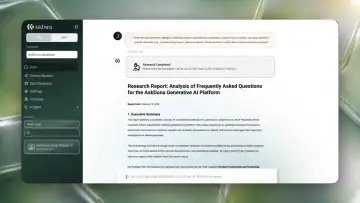
The documentation does not explicitly use “finding evidence across multiple documents.” Interpreting this as Deep Research, Batch Assessment, or standard RAG chat provides an answer. Upload design documents and operating procedures to RAG and process them until complete, then ask questions or run assessments and review reports, answers, and source previews. The documentation also allows standard functions—ordinary questions, Deep Research, and Batch Assessment in this interpretation—to be distinguished from additional glossaries, prompt adjustments, and metadata-filter configuration.
回答(日本語)
「複数文書の証拠探索」という言葉自体はドキュメント内に直接存在しませんが、複数の文書を横断的に調査・比較する機能である「Deep Research(ディープリサーチ)」や、業務手順書などを登録して一括で評価・判定を行う「Batch Assessment(バッチアセスメント)」、および通常の「RAGチャット」を指していると意訳すれば、回答が可能です。
利用者は、設計書や運用手順書をRAGデータベースにアップロードし、ドキュメント処理を実行してステータスを「処理完了」にします。その後、Deep ResearchモードやBatch Assessment、通常のRAGチャットを用いて質問やアセスメントを実行し、生成されたレポートや回答、参照元プレビュー等で結果を確認します。
標準機能で済む範囲(通常の質問、Deep Research、Batch Assessmentなど)と、追加対応(用語集の作成・投入、システムプロンプトの調整、メタデータフィルター設定など)についても、ドキュメントの記載から区別して説明することができます。
Q: 「数値要件の照合」を始めるには、数値仕様と要求基準をどう準備し、どんな操作をすればよいですか?
Answer (English)
The documentation does not explicitly mention matching numerical requirements or numerical specifications. The Pro feature Batch Assessment nevertheless provides a workflow for comparing specifications with Excel assessment items:
- Upload and register the specifications in RAG.
- Upload an Excel list of requirements and extract the items.
- Configure result options, output settings, and the prompt, then run the assessment.
- Review Result, Comment, Evidence excerpt, and Source and export an Excel report.
These operations are supported within the Pro feature’s standard functionality, but an appropriate Batch Assessment access role is required.
回答(日本語)
「数値要件の照合」や「数値仕様」という言葉自体はドキュメントに直接言及されていませんが、AskDonaの「Batch Assessment」機能(プロ機能)を用いることで、仕様書などのドキュメントと評価項目(Excel)を照合・判定する一連のプロセス(準備、登録、実行、結果確認)を行うことができます。具体的には、利用者は以下の手順を行います。
評価対象となる仕様書(ドキュメント)をRAGデータベースにアップロード・登録する。
評価項目(要求基準)が記載されたExcelファイルをBatch Assessmentにアップロードし、評価項目を抽出する。
評価の選択肢や出力設定、プロンプトを設定してアセスメントを実行する。
実行完了後、判定結果、コメント、引用(エビデンス)、参照元を確認し、Excelレポートとして一括出力する。
標準機能(プロ機能)の範囲でこれらの操作が可能ですが、Batch Assessment機能へのアクセス権限(ロール)が必要となります。
Preventing errors and checking quality (失敗への対処・品質)
Q: 「複数システムの評価」で、別システムの証跡を使うことが心配です。どう防いで確認できますか?
Answer (English)
No dedicated feature is explicitly documented for automatically detecting the incorrect use of evidence from another system. The following features can be combined to prevent it, show the evidence used, and support verification.
Prevention
When creating an assessment, configure target-system selection in the input flow and filter the RAG database by a metadata key such as category. This restricts assessment material to the intended system. Include Unable to determine among the result options to prevent forced conclusions when the target system’s database lacks relevant information.
Display
For each item, the results screen shows the Source filename and an Evidence excerpt from the supporting information, making the evidence used easy to identify.
Verification and human decisions
Because there is no automatic alert for this misuse, reviewers must check source filenames and evidence excerpts in the results screen or exported Excel report against the target system. People make the final review and decision on items marked Unable to determine or Not implemented and on consistency between the sources and evidence.
回答(日本語)
AskDonaにおいて「別システムの証跡を使う」という誤利用を直接自動検出する専用機能は明記されていませんが、以下の機能を組み合わせることで、抑制・表示・確認を行うことができます。
抑制(防止):
アセスメントの新規作成時に、入力フローで「評価対象のシステムを選択」を設定し、RAGデータベースのフィルタリング(メタデータキー:categoryなど)を行うことで、対象システム以外のドキュメント(別システムの証跡)が評価に使用されるのを防ぐ(抑制する)ことができます。また、評価選択肢に「判断不可」を含めることで、情報不足(対象システムのデータベースに該当情報がない)の場合にLLMが無理な結論を出すことを防ぎます。
表示:
アセスメントの実行結果画面において、各評価項目に対して「参照元:判定に使用されたファイル名」や「引用(エビデンス):判定の根拠となった情報源からの引用」が表示されるため、どのファイル(証跡)が使われたかを一目で確認できます。
検出・確認手順と人が判断する範囲:
自動で誤利用を検知するアラート機能はないため、人間がアセスメント実行結果画面や出力されたExcelレポートにおいて、各評価項目の「参照元」に表示されているファイル名や「引用(エビデンス)」の内容を目視で確認し、評価対象システムと一致しているかを確認します。AIによる一次評価結果のうち、「判断不可」や「未対応」と判定された項目、および「参照元」や「引用(エビデンス)」の整合性について、最終的な目視レビュー(最終判断)を人間が行います。
Q: 「部門横断の評価」で、例外まで共通基準で押し切ることが心配です。どう防いで確認できますか?
Answer (English)
The documentation does not explicitly discuss imposing common criteria on departmental exceptions in cross-department assessments. Related features and the operating model can nevertheless be combined to explain prevention and verification.
Prevention and display
- Input flows and item filters can automatically exclude items that do not apply to a department.
- Including Unable to determine prevents forced conclusions when information is insufficient.
- Explicit prompt instructions, such as marking an item Not implemented if any criterion is unmet, adjust assessment strictness and discourage indiscriminate application of common criteria.
- Results show the assessment, a Comment explaining the decision, an Evidence excerpt, and the Source. These allow an evidence-based check of whether exceptions have been overridden.
Verification and human decisions
- Before publication, test a small set of items and check and adjust whether exceptions are handled as expected.
- After execution, review the comments and evidence.
- AI performs the initial assessment; people make final decisions, focusing manual review on Unable to determine, Not implemented, and Review required.
回答(日本語)
ドキュメントには「部門横断の評価で例外まで共通基準で押し切る」という表現に直接言及した記述はありませんが、関連する機能や運用モデルを組み合わせることで、これを防ぎ、確認する方法が示されています。
検出・抑制・表示の方法:
- 抑制(除外と無理な結論の防止):
- 「入力フロー」と「項目フィルタ」を設定することで、部門の特性に応じて「該当しない部門の項目は対象外」として自動的に除外できます。
- 評価選択肢に「判断不可」を設定することで、情報不足の場合にAIが無理な結論(共通基準での押し切り)を出すことを防ぎます。
- プロンプトで「少しでも基準を満たさない場合は未対応と判定すること」などの明確な指示を与えることで、判定の厳格さを調整し、安易な共通基準の適用を抑制できます。
- 表示(根拠の可視化):
- アセスメント結果には、「判定結果」だけでなく、判定理由を説明する「コメント」、判定の根拠となった「引用(エビデンス)」、および「参照元」が表示されます。これにより、共通基準で押し切られていないかをエビデンスに基づいて確認できます。
できない場合の確認手順と人が判断する範囲:
- 確認手順:
- 本番公開前に、少ない項目数で「テスト実行」を行い、判定結果が期待通り(例外が正しく処理されているか)を確認・調整します。
- 実行後は、出力された「コメント」や「引用(エビデンス)」を確認します。
- 人が判断する範囲:
- 「一次評価をAIに、最終判断を人間に」という分業モデルを基本とします。
- 人間(担当者)は、AIが「判断不可」「未対応」「要確認」と判定した項目に集中して目視レビューや最終判断を行います。
Q: 「大量評価の段階実施」で、小規模の成功を全体に当てはめることが心配です。どう防いで確認できますか?
Answer (English)
The documentation does not directly discuss phased large-scale assessment or extrapolating a small pilot’s success to the entire population. Related features and practices can be interpreted to address the question.
Phased testing and adjustment: Before publication, test a small number of items, check whether results behave as expected, and adjust prompts and result options to improve accuracy. Include Unable to determine to prevent forced conclusions when information is insufficient.
Display: Results include the assessment, a Comment explaining it, an Evidence excerpt, and the Source.
Human decisions: The operating model assigns the initial assessment to AI and the final decision to people, who manually review only items marked Unable to determine or Not implemented.
回答(日本語)
ドキュメントには「大量評価の段階実施」や「小規模の成功を全体に当てはめる」という表現に直接言及した記述はありませんが、関連する機能や運用方法を意訳することで回答が可能です。
段階実施と調整(検出・抑制):アセスメント公開前に「少ない項目数でテスト実行を行い、判定結果が期待通りかを確認」し、プロンプトや評価選択肢を調整して精度を向上させることが推奨されています。また、評価選択肢に「判断不可」を含めることで、情報不足時にLLMが無理な結論を出すことを防ぎます。
結果の表示:実行結果として「判定結果」「コメント(判定理由)」「引用(エビデンス)」「参照元」が表示されます。
人が判断する範囲:AIにすべてを任せるのではなく、「一次評価をAIに、最終判断を人間に」という分業モデルを基本とし、人間は「判断不可」や「未対応」の項目だけを目視レビュー(最終判断)します。
Q: 「不足資料の洗い出し」で、検索失敗を未提出と扱うことが心配です。どう防いで確認できますか?
Answer (English)
Including Unable to determine among AskDona’s result options prevents forced conclusions when information is insufficient, whether because of retrieval failure or missing submissions, and makes the issue visible as a result. When AI cannot decide, review Result, Comment, Evidence excerpt, and Source in the results screen or Excel output. Human review and final decisions are limited to items marked Unable to determine or Not implemented.
回答(日本語)
AskDonaでは、アセスメントの評価選択肢に「判断不可」を設定することで、情報不足(検索失敗や未提出など)の際にAIが無理な結論を出すことを防ぎ(抑制)、判定結果として「判断不可」を表示(検出)することができます。AIが自動で判断できない場合の確認手順として、アセスメント結果画面や出力されたExcelから「判定結果」「コメント」「引用(エビデンス)」「参照元」を確認します。人が判断する範囲は、「判断不可」や「未対応」と判定された項目に限定し、担当者が目視で最終判断(レビュー)を行います。
Q: 「矛盾する証拠の整理」で、都合のよい証拠だけを選ぶことが心配です。どう防いで確認できますか?
Answer (English)
In system or AI personality settings, AskDona can be instructed to present conflicting sources together with their update dates or explicitly identify contradictions between documents. These rules can discourage selecting only convenient evidence and make contradictions visible.
To verify the behavior, users can inspect the LLM’s reasoning through Show AskDona Thoughts and open original documents through References, Sources, and source previews. Under the initial-AI-assessment, final-human-decision model, people review the displayed reasoning and original sources and make the final judgment.
回答(日本語)
AskDonaでは、システムプロンプト(システム環境設定やAIパーソナリティ設定)において「複数情報源に不整合がある場合は更新日を明記して両論併記する」や「ドキュメント間に矛盾がある場合は明確に示す」といったルールを指示することで、都合のよい証拠だけを選ぶことを抑制し、矛盾を検出・表示させることができます。
また、これが正しく行われているかを確認する手順として、回答画面の「Show AskDona Thoughts」からLLMの思考過程を確認する手順や、「References」や「参照元」から「参照元プレビュー」機能を用いて元のドキュメントを直接閲覧・確認する手順が提供されています。
人が判断する範囲については、「一次評価をAIに、最終判断を人間に」という分業モデルに基づき、AIが提示した思考過程や参照元の原文を人間が目視でレビューし、最終的な判断を行います。
Q: 「修正後の証拠確認」で、改善報告だけで完了と扱うことが心配です。どう防いで確認できますか?
Answer (English)
There is no explicit documentation of a dedicated feature that detects or prevents treating an improvement report alone as proof of completion when checking corrective-action evidence. Batch Assessment settings, outputs, and the operating model can nevertheless be combined to address this risk.
Prevention and display
- In Step 6, Result Options, define Implemented precisely, for example as requiring clear confirmation of implementation. In Step 8, Prompt, require concrete evidence rather than written or verbal improvement reports alone, and instruct the AI to return Not implemented or Unable to determine when evidence is absent.
- The results screen and report show the Result, a Comment explaining it, an Evidence excerpt, and the Source filename, allowing the basis of the assessment to be checked.
Human verification
- AI performs the initial assessment; people make final decisions.
- Even for Implemented results, reviewers inspect comments and evidence to decide whether actual evidence exists beyond an improvement report. They also review Unable to determine and Not implemented items and check additional evidence.
回答(日本語)
AskDonaには「修正後の証拠確認」において「改善報告だけで完了と扱う」ことを直接的に検出・抑制・表示する専用機能についての文字通りの言及はありません。しかし、Batch Assessment(バッチアセスメント)の設定、出力仕様、および運用モデルを組み合わせることで、これを検出し、抑制し、人が判断する範囲を明確にすることができます。
検出・抑制・表示する方法:
- 評価選択肢とプロンプトによる抑制:アセスメント作成時の「評価選択肢」の設定(ステップ6)において、「対応済み」の基準を「明確に対応済みであることが確認できる場合」などと具体的に定義します。さらに「プロンプト」の設定(ステップ8)において、「改善報告(テキストや口頭の報告のみ)だけでは対応済みとせず、具体的な証跡(エビデンス)が確認できない場合は未対応または判断不可と判定すること」のように厳格な評価指示を記述することで、改善報告のみで完了と扱うことを抑制できます。
- 実行結果による検出・表示:アセスメントの実行結果画面や出力レポートには、「判定結果」だけでなく、判定理由を説明する「コメント」、判定の根拠となった情報源からの「引用(エビデンス)」、および「参照元」のファイル名が表示されます。これにより、AIが何を根拠に判定したのかをエビデンスから検出・表示できます。
できない場合の確認手順と人が判断する範囲:
- 分業モデルの適用:AIにすべてを任せるのではなく、「一次評価をAIに、最終判断を人間に」という分業モデルを適用します。
- 人間による目視レビュー:担当者は、AIが「対応済み」と判定した項目であっても、出力された「コメント」や「引用(エビデンス)」を確認し、本当に改善報告だけでなく実際の証跡が存在するかどうかを最終判断します。また、「判断不可」や「未対応」と判定された項目についても、人間が目視レビューを行い、追加の証跡を確認します。
Q: 「監査提出資料の準備」で、必要な根拠が出力から抜けることが心配です。どう防いで確認できますか?
Answer (English)
No dedicated detection feature is documented for required evidence being omitted from output. The documentation can nevertheless be interpreted to explain controls, visibility, and human responsibilities.
Display and prevention
- Results screens and Excel reports show Result, Comment, Evidence excerpt, and Source for each item, allowing the supporting excerpts to be checked.
- Include Unable to determine to prevent forced conclusions when information is insufficient. Clear assessment policies and precautions in the prompt improve accuracy. A shared system prompt establishes basic behavior, including evidence-based assessment.
Verification and human decisions
- Check results and evidence in the results screen or Excel report. Click a source file to inspect the original in the right-hand preview.
- AI performs the initial assessment; people manually review and make final decisions only on items marked Unable to determine or Not implemented.
回答(日本語)
「必要な根拠が出力から抜ける」という事象に対する直接的な検出機能についての言及はありませんが、ドキュメントの記載から意訳することで、以下のように検出・抑制・表示し、人が判断する範囲を整理することができます。
検出・抑制・表示の方法:
- 表示:アセスメントの実行結果画面や出力されるExcelレポートにおいて、各評価項目に対して「判定結果」「コメント」「引用(エビデンス)」「参照元」が明確に表示・出力されます。これにより、判定の根拠となった情報源からの引用(エビデンス)を確認できます。
- 抑制:評価選択肢の設定時に「判断不可」を含めることで、情報不足の場合にLLMが無理な結論を出すことを防ぐ(抑制する)ことができます。また、プロンプト(指示文)で評価の方針や注意事項を明確に指示することで判定精度を向上させることができます。さらに、共通のシステムプロンプトにより、エビデンスに基づく判定などの基本的な振る舞いが担保されています。
できない場合の確認手順と人が判断する範囲:
- 確認手順:アセスメント結果の確認画面や出力されたExcelレポートで判定結果や引用(エビデンス)を確認します。また、参照元のファイルをクリックすることで、画面右側に表示されるプレビューから元のドキュメントを直接参照して正確性を確認できます。
- 人が判断する範囲:AIにすべてを任せるのではなく、「一次評価をAIに、最終判断を人間に」という分業モデルを基本とします。担当者は、AIが「判断不可」や「未対応」と判定した項目だけを目視レビュー(最終判断)します。
Q: 「評価時点の保存」で、現在の資料を過去の根拠と扱うことが心配です。どう防いで確認できますか?
Answer (English)
AskDona does not explicitly name a feature for preserving assessment-time information or preventing current materials from being treated as historical evidence. Related settings and features can be combined to address these issues.
- Prompt controls: In RAG chat system settings, distinguish past and future using reference dates. Instructions can require only future-dated information for upcoming events, explicit dates in YYYY年M月D日 format, and no invented dates where sources lack them.
- Evidence display: Batch Assessment shows evidence excerpts and source filenames alongside results and comments.
- Historical comparison: Because editing a published assessment changes its settings relative to historical runs, duplicate it and manage the copy separately when comparison matters.
Reviewers check evidence and sources in run history to determine whether appropriately dated and versioned materials were used. Under the initial-AI-assessment, final-human-decision model, people make the final judgment on validity from the results and evidence.
回答(日本語)
AskDonaには「評価時点の保存」や「現在の資料を過去の根拠と扱う」という直接的な機能名や用語についての言及はありませんが、関連する機能や設定を組み合わせることで対応可能です。
検出・抑制・表示について:
- 抑制(プロンプト制御):RAGチャットのシステム環境設定において、参照情報の日時で過去・未来を判別するプロンプトを設定することで、過去の情報を誤って案内することを抑制できます。具体的には、現在日付より後の情報のみを回答することや、日付を「YYYY年M月D日」形式で明記し、日付がない場合は推測で書かないことを指示します。
- 表示(エビデンスの確認):Batch Assessmentの実行結果画面では、判定結果やコメントに加え、判定の根拠となった「引用(エビデンス)」や「参照元(ファイル名)」が表示されます。
- 過去結果との比較:公開済みのアセスメントを編集すると過去の実行履歴と設定が異なる状態になるため、過去結果との比較を重視する場合は「複製」して別アセスメントとして運用することが推奨されています。
できない場合の確認手順と人が判断する範囲:
- 確認手順:アセスメント実行履歴の結果画面から、各評価項目の「引用(エビデンス)」や「参照元」を確認し、適切な日付やバージョンの資料が根拠として扱われているかを目視でチェックします。
- 人が判断する範囲:AskDonaは「一次評価をAIに、最終判断を人間に」という分業モデルを基本としており、AIが提示した判定結果やエビデンスをもとに、最終的な妥当性の判断は人間が目視レビューで行います。
Q: 「改善点の説明」で、抽象的な指摘しか伝わらないことが心配です。どう防いで確認できますか?
Answer (English)
The documentation does not directly discuss improvement feedback remaining too abstract. Its guidance on avoiding vague assessments, displaying evidence, and human decisions can be interpreted to answer the question.
Controls and display
- In Step 6, give each result option specific LLM instructions and include Unable to determine to prevent forced conclusions. Instructions to describe residual risks for negative options can produce more concrete improvements.
- In Step 8, specify assessment policies and precautions. For RAG chat, define answer templates and clarification rules so ambiguous questions trigger follow-up questions rather than guesses.
- Results show Result, Comment, Evidence excerpt, and Source filename, exposing the concrete basis of each decision.
Verification
- Review comments and evidence in the results screen or Excel report. Identify Unable to determine, Not implemented, or overly abstract comments.
- Consult original PDFs or Office files through source previews or similar means to check accuracy and specific improvements.
- Test a small sample beforehand and adjust prompts and option descriptions if results or comments are insufficiently specific.
Human decisions
AI performs the initial assessment. People focus final review on Unable to determine, Not implemented, or Further confirmation required, judging the results and comments against evidence and original documents.
回答(日本語)
「改善点の説明」で「抽象的な指摘しか伝わらない」という特定の表現自体はドキュメントに直接含まれていませんが、AIの判定や回答が曖昧・抽象的になるのを防ぐための設定方法や、エビデンスの表示、人間が最終判断する範囲については、ドキュメントの記載を意訳することで回答が可能です。
検出・抑制・表示の方法
- 検出・抑制:アセスメントの新規作成時、ステップ6「評価選択肢」で各選択肢に対して具体的な説明(LLMへの指示)を記入することで、AIの判定基準を明確にし、抽象的な指摘や無理な結論を出すことを抑制できます。また、「判断不可」の選択肢を含めることで、情報不足の場合にLLMが無理な結論を出すことを防ぎます。さらに、「未対応」等の否定的な選択肢には残存リスクの記述指示を含めることで、具体的な改善点を記述させることができます。ステップ8「プロンプト」で評価の方針や注意事項を具体的に記述することも判定品質の向上に繋がります。RAGチャットでは、システムプロンプト(システム環境設定)で回答のテンプレートやルールを設計したり、曖昧な質問に対して推測で答えず聞き返しを行うルールを設定したりすることで、抽象的な回答を抑制できます。
- 表示:アセスメントの実行結果画面において、各評価項目に対して「判定結果」「コメント(判定に至った理由の説明)」「引用(エビデンス)」「参照元」が表示されます。これにより、判定の根拠となった具体的な情報源からの引用(エビデンス)や参照元ファイル名を確認できます。
できない場合の確認手順と人が判断する範囲
- 確認手順:アセスメントの実行結果画面や出力されたExcelレポートにおいて、各評価項目の「コメント」や「引用(エビデンス)」を確認します。判定結果が「判断不可」や「未対応」となっている項目、あるいはコメントが抽象的で判断に迷う項目を特定します。その後、参照元プレビュー機能等を用いて、判定の根拠となった元のドキュメント(PDFやOfficeファイルなど)を直接参照し、内容の正確性や具体的な改善点を確認します。また、事前に少ない項目数でテスト実行を行い、判定結果やコメントが期待通り(具体的)かを確認し、必要に応じてプロンプトや評価選択肢の記述を調整します。
- 人が判断する範囲:AIにすべてを任せるのではなく、「一次評価をAIに、最終判断を人間に」という分業モデルを基本とします。人間(担当者)は、AIが「判断不可」や「未対応」と判定した項目、あるいは「追加確認が必要」とした項目に集中して目視レビュー・最終判断を行います。判定結果やコメントの妥当性を、エビデンス(引用)や参照元ドキュメントと照らし合わせて最終的に人間が判断します。
Q: 「数百項目の確認」で、項目を読み飛ばすことが心配です。どう防いで確認できますか?
Answer (English)
Answer: AI assesses all items automatically; people review only Unable to determine or Not implemented results.
Basis: Batch Assessment automates many-item assessment. Unable to determine prevents forced conclusions, and the output displays Result, Comment, Evidence excerpt, and Source. People perform the targeted final review.
回答(日本語)
【回答】AIが全項目を自動判定し、人は判断不可や未対応のみを確認する。
【根拠】ドキュメントによれば、Batch Assessmentは多数の評価項目を自動判定します。ドキュメントによれば、一次評価をAIが行い、担当者は「判断不可」「未対応」の項目だけを目視レビューします。ドキュメントによれば、「判断不可」の選択肢により無理な結論を出すことを防ぎます。ドキュメントによれば、判定結果、コメント、引用、参照元が表示されます。
Q: 「回答と理由の一覧化」で、判定と理由が食い違うことが心配です。どう防いで確認できますか?
Answer (English)
Answer: Use Unable to determine, the results display, and human review.
Basis: Step 6 explains that Unable to determine prevents forced conclusions when information is insufficient. Results show Result, Comment, Evidence excerpt, and Source. Case 1 assigns initial assessment to AI and final decisions to people, who manually review only Unable to determine or Not implemented items.
回答(日本語)
【回答】判断不可設定、結果画面表示、人による目視レビューで対応。
【根拠】ドキュメント「ステップ6:評価選択肢」に「『判断不可』を含めると、情報不足の場合にLLMが無理な結論を出すことを防げます」と記載。
ドキュメント「アセスメント実行結果の確認」に結果画面で判定結果、コメント、引用、参照元が表示されると記載。
ドキュメント「ケース1」に「一次評価をAIに、最終判断を人間に」という分業モデルで「判断不可」「未対応」の項目だけを目視レビューすると記載。
Q: 「独自の判定区分」で、区分の境界を取り違えることが心配です。どう防いで確認できますか?
Answer (English)
Answer: Use specific criteria and Unable to determine to limit forced conclusions, then verify the four output fields and source previews.
Basis: Step 6 requires concrete descriptions for result options. Output Settings provides Result, Comment, Evidence excerpt, and Source, and previews let people inspect original documents directly.
回答(日本語)
【回答】判定基準の具体化や判断不可で抑制し、4列出力とプレビューで確認。
【根拠】ドキュメント「ステップ6:評価選択肢」によれば、各選択肢に具体的な説明を記入し「判断不可」を含めることで無理な結論を防ぎます。また、ドキュメント「出力設定」で判定結果、コメント、引用、参照元の4列を出力し、ドキュメント「参照元プレビュー」で元のドキュメントを直接参照して人が確認します。
Q: 「対象外の扱い」で、対象外を未対応と扱うことが心配です。どう防いで確認できますか?
Answer (English)
Item filters automatically exclude matching items as Not applicable based on input-flow answers. Specific LLM criteria for each result option and an Unable to determine option help prevent forced conclusions when information is insufficient. Results show Result, Comment, Evidence excerpt, and Source. When further verification is needed, people review these fields, particularly comments and evidence, and make final decisions from the stated reasoning and basis.
回答(日本語)
ドキュメントによれば、入力フローの回答に基づいて条件に合致した項目を自動的に「対象外」として除外する「項目フィルタ」機能が提供されています。また、評価選択肢の設定において、各選択肢に対して具体的な判定基準(LLMへの指示)を記入することや、「判断不可」の選択肢を含めることで、情報不足時に無理な結論を出すことを防ぐ(抑制する)ことができます。ドキュメントによれば、実行結果の確認画面において、各評価項目に対して「判定結果」「コメント」「引用(エビデンス)」「参照元」が表示されます。できない場合の確認手順と人が判断する範囲としては、これらの表示内容(特にコメントや引用エビデンス)を確認し、AIが判定した理由や根拠をもとに、人が最終的な判断を行います。
Compared with other approaches (他の方法との比較)
Q: 「毎年の自己点検」には、前年Excelの複製と文書を使うAIをどう使い分けるとよいですか?
Answer (English)
The documentation compares manual assessment—equivalent to copying the previous year’s Excel form and checking it manually—with AskDona’s Batch Assessment, and describes suitable and unnecessary uses.
For the same materials and task, AI replaces manual document reading and status entry with automatic assessments exported to Excel with comments and evidence. People manually review only items marked Unable to determine or Not implemented. This division substantially reduces effort and improves consistency across reviewers.
It is suited to recurring checks involving hundreds or thousands of items and work requiring more consistent assessments. Another approach is preferable when a simple checklist with a few items is sufficient or individual RAG chat questions can resolve the task.
回答(日本語)
ドキュメントにおいて、手作業によるアセスメント(前年Excelの複製や手作業でのチェックに相当)と、AskDonaのBatch Assessment機能との比較、および向く条件・不要な条件(別の方法がよい条件)について言及されています。
同じ資料・同じ課題で変わる点として、手作業でドキュメントを読み込んで対応状況を埋める代わりに、AIが自動判定してコメントやエビデンス付きでExcel出力し、人間は「判断不可」「未対応」のみを目視レビューする分業モデルに移行できるため、工数を大幅に削減し、判定のばらつきを減らして一貫性を確保できることが示されています。
向く条件として「数百〜数千の評価項目を定期的にチェックする業務」や「担当者ごとの判定のばらつきを減らし、評価の一貫性を確保したい場合」が挙げられており、別の方法がよい条件(不要な場合)として「数項目程度の簡単なチェックリストだけで十分な場合」や「RAGチャットで個別に質問すれば解決する場合」が示されています。
Q: 「部門横断の評価」には、部門への個別依頼と文書を使うAIをどう使い分けるとよいですか?
Answer (English)
The documentation does not explicitly mention sending separate requests to departments. Interpreting its references to manual work and departmental self-checks as that process provides relevant information.
What changes with the same materials and task
- Replacing manual work with an initial AI assessment substantially reduces effort.
- Assessments become more consistent across reviewers.
- Initial AI assessment followed by human final decisions makes high-volume work more efficient.
- Recurring assessments track operational changes over time.
Suitable uses
- Recurring assessment work.
- Hundreds of items currently checked manually every year or quarter.
- Work requiring more consistent decisions across reviewers.
When another approach is preferable
- A simple checklist with a few items is sufficient.
- Individual RAG chat questions can resolve the task.
回答(日本語)
ドキュメント内には「部門への個別依頼」という直接的な表現は存在しませんが、各部門の運用状況を点検する「担当者の手作業」や「自己点検」をこれに該当するものとして意訳すれば、回答となる情報が記載されています。
同じ資料・同じ課題で何が変わるか:
- 担当者の手作業からAIによる一次評価に置き換えることで、工数を大幅に削減できます。
- 担当者ごとの判定のばらつきを減らし、評価の一貫性を確保できます。
- 「一次評価をAIに、最終判断を人間に」という分業モデルにより、大量業務を省力化・効率化できます。
- 定期的に実施することで、業務の変化を定点観測できます。
向く条件:
- 定期的なアセスメント業務を担当している場合。
- 数百件規模の評価項目を、毎年または毎四半期ごとに手作業でチェックしている場合。
- 担当者ごとの判定のばらつきを減らし、評価の一貫性を確保したい場合。
別の方法がよい(不要な)条件:
- 数項目程度の簡単なチェックリストだけで十分な場合。
- RAGチャットで個別に質問すれば解決する場合。
Q: 「大量評価の段階実施」には、全件一括の導入と文書を使うAIをどう使い分けるとよいですか?
Answer (English)
The documentation does not explicitly compare phased large-scale assessment with an all-at-once rollout. It does describe Batch Assessment’s suitable uses, unnecessary uses, and benefits, which can be organized and interpreted to answer the question.
Suitable uses include hundreds of items checked manually every year or quarter and work requiring more consistent decisions across reviewers. It is unnecessary when a simple checklist with a few items is sufficient or individual RAG chat questions can resolve the task.
For the same materials and task, assigning the initial assessment to AI and final decisions to people reduces effort and improves efficiency and consistency. Recurring assessments also help track operational changes over time.
回答(日本語)
ドキュメントには「大量評価の段階実施」や「全件一括の導入」という表現は直接使われていませんが、AskDonaのBatch Assessment(バッチアセスメント)が向く条件や不要な条件(別の方法がよい条件)、および導入によって何が変わるか(効果)については記載されています。これらを意訳・整理することで回答が可能です。
具体的には、向く条件として「数百件規模の評価項目を、毎年または毎四半期ごとに手作業でチェックしている」「担当者ごとの判定のばらつきを減らし、評価の一貫性を確保したい」などが挙げられます。不要な条件(別の方法がよい条件)としては「数項目程度の簡単なチェックリストだけで十分な場合」や「RAGチャットで個別に質問すれば解決する場合」が挙げられます。
また、同じ資料・課題で変わること(効果)として、「一次評価をAIに、最終判断を人間に」という分業モデルによる省力化・効率化や、評価の一貫性の確保、定期的な実施による業務の変化の定点観測などが挙げられます。
Q: 「途中結果の管理」には、手動の進捗管理と文書を使うAIをどう使い分けるとよいですか?
Answer (English)
The documentation does not explicitly discuss managing interim results. Its comparison of manual checking with Batch Assessment can be interpreted to explain the differences and appropriate uses.
For the same materials and task, AI reduces the extensive manual work of reading documents and entering implementation status. Initial AI assessment followed by human final decisions improves efficiency and consistency. Results, comments, evidence, and sources are generated automatically, allowing reviewers to focus review and tracking on items requiring attention, such as Unable to determine or Not implemented. Recurring assessments also track operational changes.
It is suited to hundreds or thousands of items checked manually each year or quarter, work requiring consistent decisions, and recurring work using reusable templates. Another approach is preferable for a simple checklist with a few items or tasks resolved through individual RAG chat questions.
回答(日本語)
ドキュメントには「途中結果の管理」という言葉自体への直接的な言及はありませんが、手動の進捗管理(手作業でのチェック)とAskDonaの「Batch Assessment」機能を比較した際の違い、向く条件、および別の方法がよい条件(不要な条件)について意訳することで回答可能です。
手動の進捗管理と比べ、同じ資料・同じ課題で変わる点:
手作業でドキュメントを読み込んで対応状況を埋める膨大な工数を削減し、「一次評価をAIに、最終判断を人間に」という分業モデルにより大幅に省力化・効率化できます。
担当者ごとの判定のばらつきを減らし、評価の一貫性を確保できます。
判定結果だけでなく、コメント、引用(エビデンス)、参照元が自動で出力されるため、人間は「判断不可」や「未対応」などの要確認項目だけに集中してレビューやトラッキングを行えます。
同じアセスメントを定期的に実施することで、業務の変化を定点観測できます。
向く条件:
- 数百〜数千件規模の評価項目を、毎年または毎四半期ごとに手作業でチェックしている場合。
- 担当者ごとの判定のばらつきを減らし、評価の一貫性を確保したい場合。
- 定期的なアセスメント業務や、同じテンプレートを何度も使い回す業務がある場合。
別の方法がよい条件:
- 数項目程度の簡単なチェックリストだけで十分な場合。
- RAGチャットで個別に質問すれば解決する場合。
Q: 「追加確認事項の整理」には、個別の確認メール作成と文書を使うAIをどう使い分けるとよいですか?
Answer (English)
The documentation clearly identifies suitable uses for Batch Assessment—recurring checks of hundreds or thousands of items and improved consistency across reviewers—and unnecessary uses, such as a short checklist or questions that RAG chat can resolve individually. Its use cases describe AI performing the initial assessment while people focus follow-up questions on Further confirmation required or Review required results, and the benefit of reusable templates. These descriptions can be interpreted to compare AskDona with individually drafting follow-up emails or handling checks manually, and explain benefits such as reduced effort, consistent assessment, and focus on items requiring attention.
回答(日本語)
ドキュメントには、Batch Assessmentが向いている条件(数百〜数千の評価項目を定期的にチェックする業務、担当者ごとの判定のばらつきを減らし一貫性を確保したい場合など)と、不要な(別の方法がよい)条件(数項目程度の簡単なチェックリストで十分な場合、RAGチャットで個別に質問すれば解決する場合など)が明確に示されています。また、ドキュメントのユースケースでは、AIが一次評価を行い、人間は「追加確認が必要」や「要確認」などの項目だけに集中して追加質問(追加確認)を行う分業モデルや、同じテンプレートを何度も使い回せるメリットが示されています。これらを意訳することで、個別の確認メール作成(手作業や個別対応)とAskDonaの使い分けや、導入によって何が変わるか(省力化、一貫性の確保、要確認項目への集中など)を説明することができます。
Q: 「古い証拠の扱い」には、日付の手動チェックと文書を使うAIをどう使い分けるとよいですか?
Answer (English)
The documentation does not directly compare manual date checks with AskDona for handling old evidence, but related guidance can be combined to answer the question.
With manual checks, people inspect dates to distinguish old and new information. With AskDona, prompts can require current information, prioritize the most recent date, or flag outdated content, allowing AI to distinguish versions when answering. Bulk deletion and organization of old files can also restrict references to current information.
This is suited to large volumes of documents or assessment items that take substantial manual effort, or work requiring consistent decisions across reviewers. Batch Assessment is unnecessary when a simple checklist with a few items is sufficient or individual RAG chat questions can resolve the task.
回答(日本語)
ドキュメントには「古い証拠の扱い」における「日付の手動チェック」と「AskDona」を直接対比した記述はありませんが、関連する情報を意訳して組み合わせることで回答が可能です。
同じ資料・同じ課題で何が変わるか:
手動チェックでは人間が目視で日付を確認して新旧を判断する必要がありますが、AskDonaを使う場合、古いファイルが残っていてもプロンプト(LLMへの指示)で「最新の情報を参照する」「日付が最も新しいものを優先する」「古い情報である旨を注意書きする」と指示することで、AIが自動的に新旧を判別して回答を生成できるようになります。また、不要な古いファイルを一括削除・整理することで、最新情報のみを参照させることも可能です。
向く条件:
大量の評価項目やドキュメントがあり、手作業でのチェックに膨大な工数がかかる場合や、担当者ごとの判定のばらつきを減らし、評価の一貫性を確保したい場合に向いています。
別の方法(手動チェックなど)がよい条件:
数項目程度の簡単なチェックリストだけで十分な場合や、RAGチャットで個別に質問すれば解決する場合は、AskDonaのBatch Assessment機能を使う必要はありません。
Q: 「AI判定の修正」には、Excelの上書き修正と文書を使うAIをどう使い分けるとよいですか?
Answer (English)
The documentation does not directly discuss correcting AI decisions, but its comparison of manual work, such as overwriting Excel results, with document-based Batch Assessment can be interpreted to answer the question.
For the same materials and task, checking every item manually is replaced by initial AI assessment and human review, correction, and final decisions only on Unable to determine or Not implemented items. This makes large workloads more efficient. Comments, evidence, and sources are generated automatically alongside the results.
Suitable uses include recurring annual or quarterly checks of hundreds of items, work requiring consistent assessments, and repeated use of the same template. Another approach is preferable when a simple checklist with a few items is sufficient or individual RAG chat questions can resolve the task.
回答(日本語)
ドキュメントには「AI判定の修正」という言葉そのものに対する直接的な言及はありませんが、手作業(Excelの上書き修正など)とAskDonaのBatch Assessment(文書を使うAI)の使い分け、同じ資料・同じ課題で何が変わるか、向く条件と別の方法がよい条件については、ドキュメントに記載されており、これらを意訳することで回答を構成できます。
具体的には、同じ資料・同じ課題で変わる点として、手作業による全件チェックから「一次評価をAIに、最終判断を人間に」という分業モデルに移行し、担当者は「判断不可」や「未対応」の項目だけを目視レビュー(修正・判断)すればよくなるため、大量業務を省力化・効率化できます。また、判定結果だけでなく、コメント、引用(エビデンス)、参照元が自動で出力されるようになります。
向く条件としては、数百件規模の評価項目を毎年または毎四半期ごとに手作業でチェックする定期的なアセスメント業務であることや、判定のばらつきを減らし一貫性を確保したい場合、同じテンプレートを何度も使い回す場合が挙げられます。別の方法がよい(不要な)条件としては、数項目程度の簡単なチェックリストで十分な場合や、RAGチャットで個別に質問すれば解決する場合が挙げられます。
Q: 「重点レビューの選定」には、全項目を均等に確認と文書を使うAIをどう使い分けるとよいですか?
Answer (English)
Interpreting the documentation from the perspective of selecting priority reviews provides an answer. Instead of checking every item equally, AI performs an initial assessment and people focus manual review on results such as Unable to determine, Not implemented, Clause absent, or Review required. This division substantially reduces effort and improves efficiency. It suits recurring checks involving hundreds or thousands of items and work requiring consistent decisions across reviewers. For a simple checklist with a few items or questions that RAG chat can resolve individually, another approach such as standard RAG chat is preferable.
回答(日本語)
ドキュメントの記述を「重点レビューの選定」という観点から意訳することで、質問に対して回答することができます。
同じ資料・同じ課題で何が変わるか:
全項目を均等に確認する代わりに、AIが一次評価を自動で行い、人間は「判断不可」「未対応」や「条項なし」「要確認」といった特定の項目だけに集中して目視レビュー(重点レビュー)を行うという「一次評価をAIに、最終判断を人間に」する分業モデルに変わるため、業務を大幅に省力化・効率化できます。
向く条件:
数百〜数千の評価項目を定期的にチェックする業務や、担当者ごとの判定のばらつきを減らして評価の一貫性を確保したい場合に向いています。
別の方法がよい条件:
数項目程度の簡単なチェックリストだけで十分な場合や、RAGチャットで個別に質問すれば解決するような場合は、Batch Assessment以外の方法(通常のRAGチャットなど)が適しています。
Q: 「引用の原文照合」には、引用箇所の手動検索と文書を使うAIをどう使い分けるとよいですか?
Answer (English)
The documentation does not explicitly discuss verifying quotations against originals. Its comparison of manual reading and checking with Batch Assessment, RAG chat, and Search can be interpreted to address the question.
Changes
- Manual reading and status entry can take several days per system. Automated assessment and output of comments, evidence, and sources substantially reduce effort.
- Assessments become more consistent across reviewers.
- With AI performing the initial assessment, people focus source verification and final review on items requiring attention, such as Unable to determine or Not implemented.
Suitable uses
- Hundreds or thousands of items checked manually each year or quarter.
- A need for consistent assessments.
- Checking many items against one document.
- Reusing the same template.
Alternatives
- Batch Assessment is unnecessary for a simple checklist with a few items or individual questions that RAG chat can resolve.
- If the goal is only to find relevant materials, Search is appropriate because it does not generate an LLM answer.
回答(日本語)
ドキュメントには「引用の原文照合」という言葉自体への直接的な言及はありませんが、手作業によるドキュメントの読み込み・チェック(手動検索・照合に相当)と、AskDonaの「Batch Assessment」や「RAGチャット」「検索」などの機能を比較した使い分け、導入によって変わること、向く条件・不要な条件について、意訳することで回答となる情報が記載されています。
同じ資料・同じ課題で何が変わるか:
- 手作業でドキュメントを読み込んで対応状況を埋める場合、1システムあたり数日かかるなど膨大な工数がかかりますが、Batch Assessmentを使用することで、AIが自動判定し、コメントや引用(エビデンス)、参照元を自動出力するため、工数を大幅に削減し省力化・効率化できます。
- 担当者ごとの判定のばらつきを減らし、評価の一貫性を確保できます。
- 「一次評価をAIに、最終判断を人間に」という分業モデルにより、人間は「判断不可」や「未対応」などの要確認項目だけに集中して目視レビュー(原文照合)を行えるようになります。
AskDona(Batch Assessment)が向く条件:
- 数百〜数千件規模の評価項目を、毎年または毎四半期ごとに手作業でチェックしている場合。
- 担当者ごとの判定のばらつきを減らし、評価の一貫性を確保したい場合。
- 1ドキュメント×多項目チェックを行う場合。
- 同じテンプレートを何度も使い回す場合。
別の方法(手動検索や通常のRAGチャットなど)がよい条件:
- 数項目程度の簡単なチェックリストだけで十分な場合(Batch Assessmentは不要)。
- RAGチャットで個別に質問すれば解決する場合。
- 単に関連資料を探したいだけのときは、LLMによる回答生成を行わない「検索(Search)」機能が適しています。
Q: 「改善点の説明」には、評価票だけの返却と文書を使うAIをどう使い分けるとよいですか?
Answer (English)
Although the documentation does not explicitly say “explaining improvements,” its descriptions of Batch Assessment outputs and suitable uses can be interpreted to answer the question. Compared with returning only an assessment form’s result, AskDona also provides a Comment explaining the decision, an Evidence excerpt, and the Source filename, making the basis clearer. It suits recurring checks involving hundreds or thousands of items and work requiring consistent decisions across reviewers. Another approach is preferable for a simple checklist with a few items or tasks resolved through individual RAG chat questions.
回答(日本語)
「改善点の説明」という表現自体はドキュメントに直接記載されていませんが、AskDonaのBatch Assessment機能における出力内容や、向く条件・不要な条件に関する記述を意訳することで回答が可能です。
同じ資料・同じ課題で変わる点として、単なる評価票(判定結果)の返却と比べ、AskDonaでは「コメント(判定に至った理由の説明)」、「引用(エビデンス:判定の根拠となった情報源からの引用)」、「参照元(判定に使用されたファイル名)」が合わせて出力されるため、判定の根拠や理由が明確になります。
向く条件としては、「数百〜数千の評価項目を定期的にチェックする業務」や「担当者ごとの判定のばらつきを減らし、評価の一貫性を確保したい」場合が挙げられます。
別の方法がよい条件としては、「数項目程度の簡単なチェックリストだけで十分な場合」や「RAGチャットで個別に質問すれば解決する場合」が挙げられます。
Q: 「回答と理由の一覧化」には、結果だけの手入力と文書を使うAIをどう使い分けるとよいですか?
Answer (English)
The documentation compares manual entry with Batch Assessment and identifies suitable uses. Manual reading and status entry can take several days per system. AI automatically assesses items and exports Excel results with comments and evidence, leaving people to review only Unable to determine or Not implemented items. This substantially reduces effort. Suitable uses include reusing one template for different targets, recurring assessments to track change, and checking many items against one document.
回答(日本語)
ドキュメントにおいて、手作業(手入力)とAskDonaの「Batch Assessment」機能を用いた場合の比較や、それぞれの特徴、向いているユースケースについて言及されています。手作業でドキュメントを読み込んで対応状況を埋める場合、1システムあたり数日かかるのに対し、AskDonaを使用するとAIエージェントが自動判定し、コメントやエビデンス(理由)付きでExcel出力するため、担当者は「判断不可」や「未対応」の項目だけを目視レビューするだけでよくなり、大幅に省力化・効率化できます。また、向いている条件として、同じテンプレートを別対象で何度も使い回す場合、定期的に実施して定点観測する場合、1ドキュメントに対して多項目チェックを行う場合などが挙げられています。
Q: 「複数条件の合否」には、条件ごとの手動分割と文書を使うAIをどう使い分けるとよいですか?
Answer (English)
The documentation does not explicitly discuss pass/fail decisions across multiple conditions or manually splitting them into separate checks. Interpreting these as many-item Batch Assessment and manual checking provides an answer. Batch Assessment reduces effort and improves consistency across reviewers. It suits hundreds of items checked manually each year or quarter. A short checklist or individually answerable RAG chat questions are better handled by simpler alternatives. The documented operating model assigns the initial assessment to AI and final decisions to people.
回答(日本語)
提供されたドキュメントには「複数条件の合否」や「条件ごとの手動分割」という言葉は直接言及されていません。しかし、これらを「多数の評価項目に対するアセスメント(Batch Assessment)」および「手作業でのチェック」と意訳すれば、ドキュメントに回答となる情報が存在します。
ドキュメントによれば、Batch Assessmentは多数の評価項目に対して自動で判定を行う機能であり、手作業でのチェックと比べて「担当者ごとの判定のばらつきを減らし、評価の一貫性を確保」でき、工数を大幅に削減できます。また、向く条件として「数百件規模の評価項目を、毎年または毎四半期ごとに手作業でチェックしている方」が挙げられており、別の方法(RAGチャットなど)がよい条件として「数項目程度の簡単なチェックリストだけで十分な場合」や「RAGチャットで個別に質問すれば解決する場合」が示されています。
さらに、ドキュメントでは、AIにすべて任せるのではなく「一次評価をAIに、最終判断を人間に」という分業モデルが示されています。